Before you start
A models folder grows fast: hundreds of files with names you no longer recognise, no preview, no trace of the prompts that made them look good, and the same file downloaded twice because it was on another drive. AI Models Manager turns that chore into a catalogue: you pick models on Civitai, the app keeps their gallery images and prompts next to them, and downloads go through one cart that tells you exactly why a file failed.
- Windows 10 or 11, 64-bit, and an internet connection.
- The free .NET 8 Desktop Runtime. If it is missing, Windows offers to download it the first time you start the app.
- No graphics card needed. The app browses, archives and downloads; it does not run the models.
- Unzip it anywhere, ideally on the drive that will hold your collection: galleries, model files, settings and caches all stay in the app's folder. An SSD makes the start faster on a big collection.
- A Civitai account and API token is optional for browsing, but many model files can only be downloaded with one (Step 1).
The window at a glance
The RUN tab holds eight sub-tabs. Discover is where everything starts.
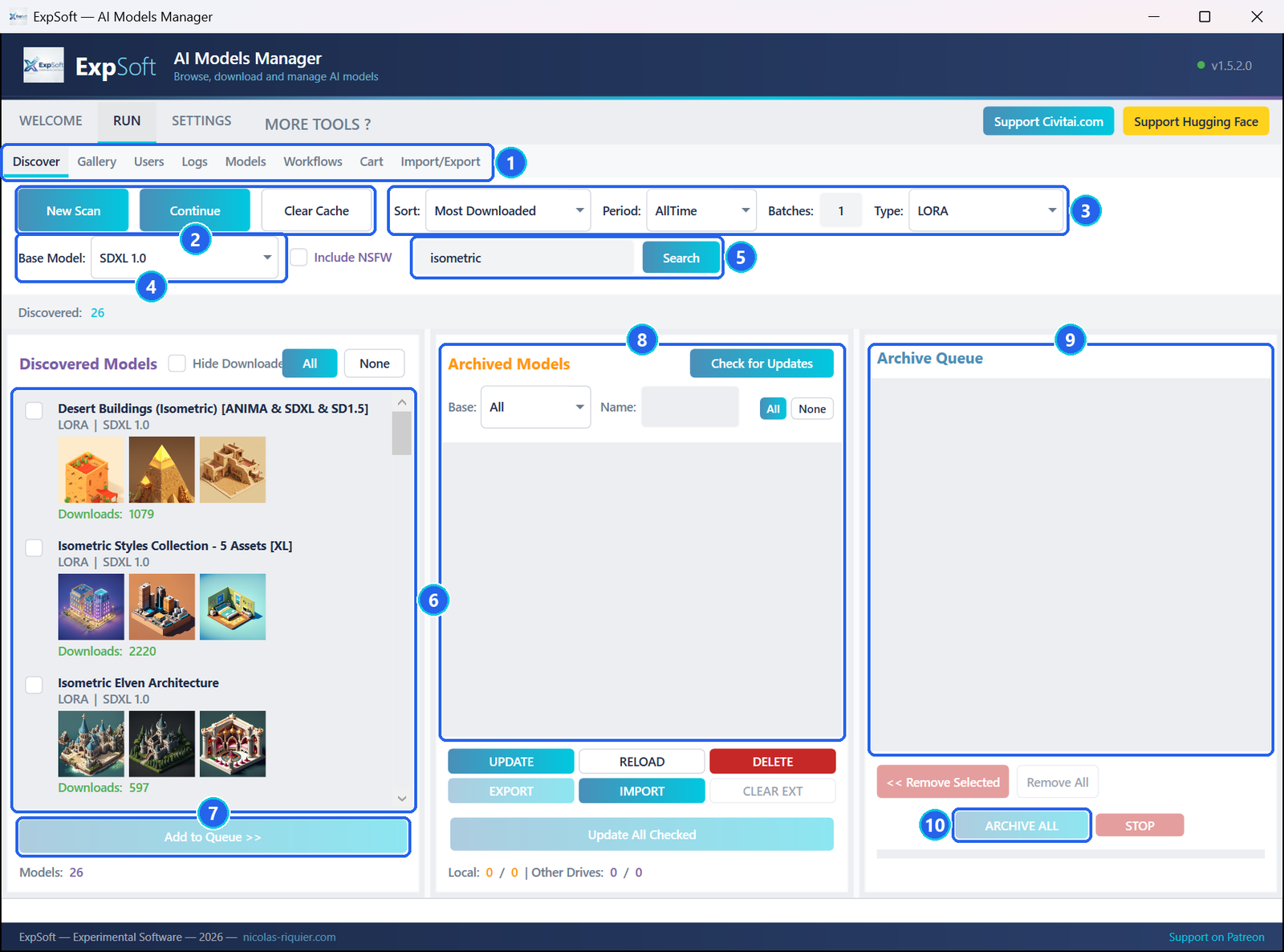
- 1The sub-tabs — Discover, Gallery, Users, Logs, Models, Workflows, Cart, Import/Export.
- 2New Scan — browses Civitai with the filters (and clears the previous results); Continue picks up where the last scan stopped; Clear Cache empties the list.
- 3Sort, Period, Batches, Type — Batches is the number of pages to fetch, 100 models each.
- 4Base Model — the family of models they are made for (SDXL 1.0 here).
- 5Search — looks Civitai up by name (or press Enter in the box).
- 6Discovered Models — each model with its type, base model, three previews and its download count. Tick the ones you want; Hide Downloaded hides what you already have.
- 7Add to Queue >> — sends the ticked models to the Archive Queue.
- 8Archived Models — your catalogue (Step 3).
- 9Archive Queue — the models waiting to be archived.
- 10ARCHIVE ALL — archives every model of the queue; STOP ends the run.
The other top tabs are WELCOME (a quick start and the credits), SETTINGS (Step 1) and MORE TOOLS ?, the other ExpSoft tools. The version at the top right turns orange when a newer one is out: click it to see it. Almost every button has a tooltip: hover it to read exactly what it does.
Settings and tokens
Open SETTINGS. You can browse and archive without a token; add one when you want to download model files.
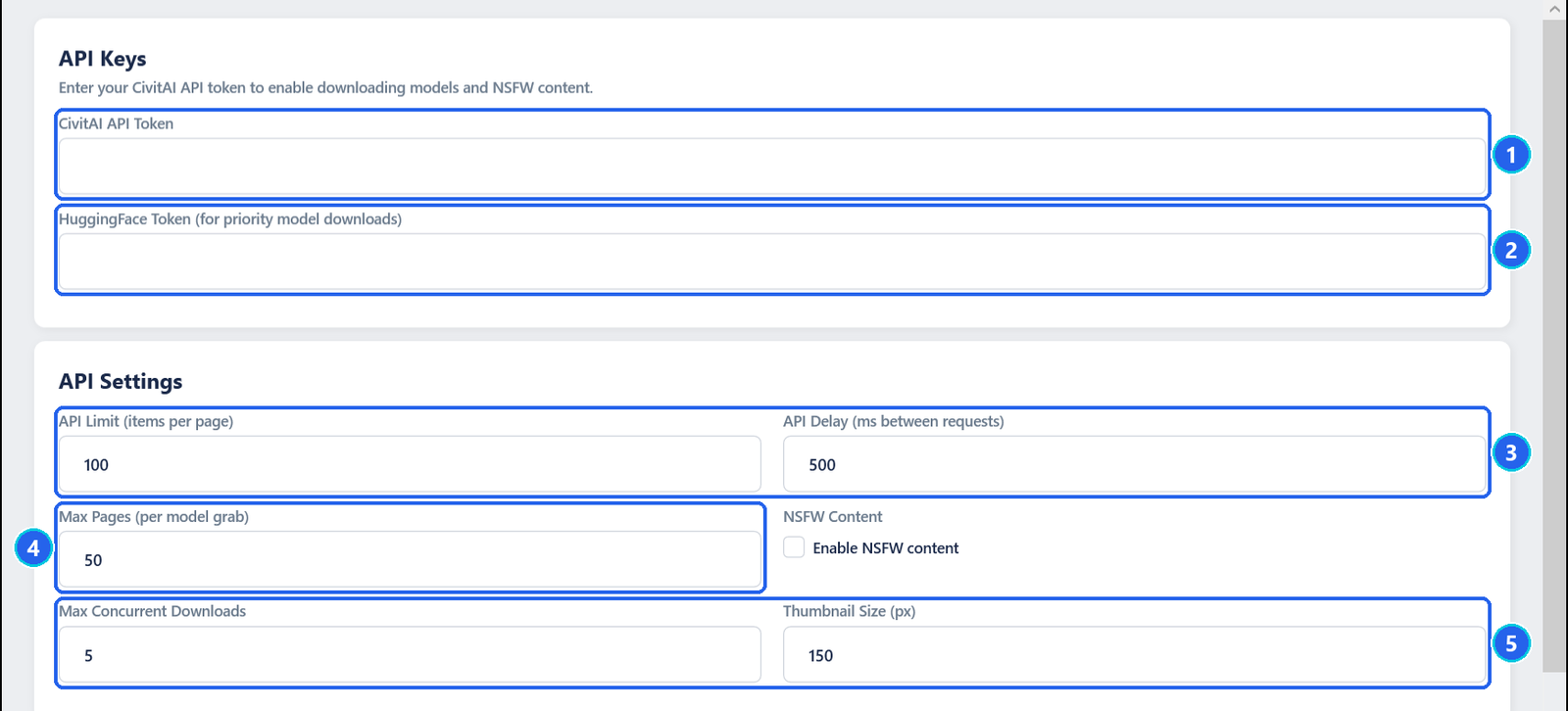
- 1CivitAI API Token — create one in your Civitai account settings and paste it here. It is what lets the cart download files marked Login Required.
- 2HuggingFace Token — optional. Some large files are also published on Hugging Face; with a token the app can fetch them from there first.
- 3API Limit and API Delay — 100 items per request and 500 ms between requests by default.
- 4Max Pages (per model grab) — 50 by default.
- 5Max Concurrent Downloads (5) and Thumbnail Size (150 px).
The NSFW box stays off by default. Further down, Data Path shows where everything is stored (the app's folder) and FFmpeg Path points to FFmpeg if you have it, to make thumbnails of the videos some models show. Nothing is saved until you click Save Settings; a new token works right away, without restarting the app.
Find models
In RUN › Discover, set the filters, then click New Scan to browse, or type a name and click Search. For the capture above we chose Most Downloaded, AllTime, 1 batch, type LORA, base SDXL 1.0 and searched isometric: 26 models, each with three previews.
- Tick the models you want to keep — All and None tick or untick the whole list — then click Add to Queue >>. They move to the Archive Queue on the right.
- A model you already have on another drive is skipped when you archive, as long as that drive's collection is imported (see Several drives).
Archive them
Click ARCHIVE ALL. For each model of the queue, the app downloads the gallery images of its Civitai page with their generation data — prompt, negative prompt, sampler, steps, seed — into its own folder, then adds the model to your catalogue.
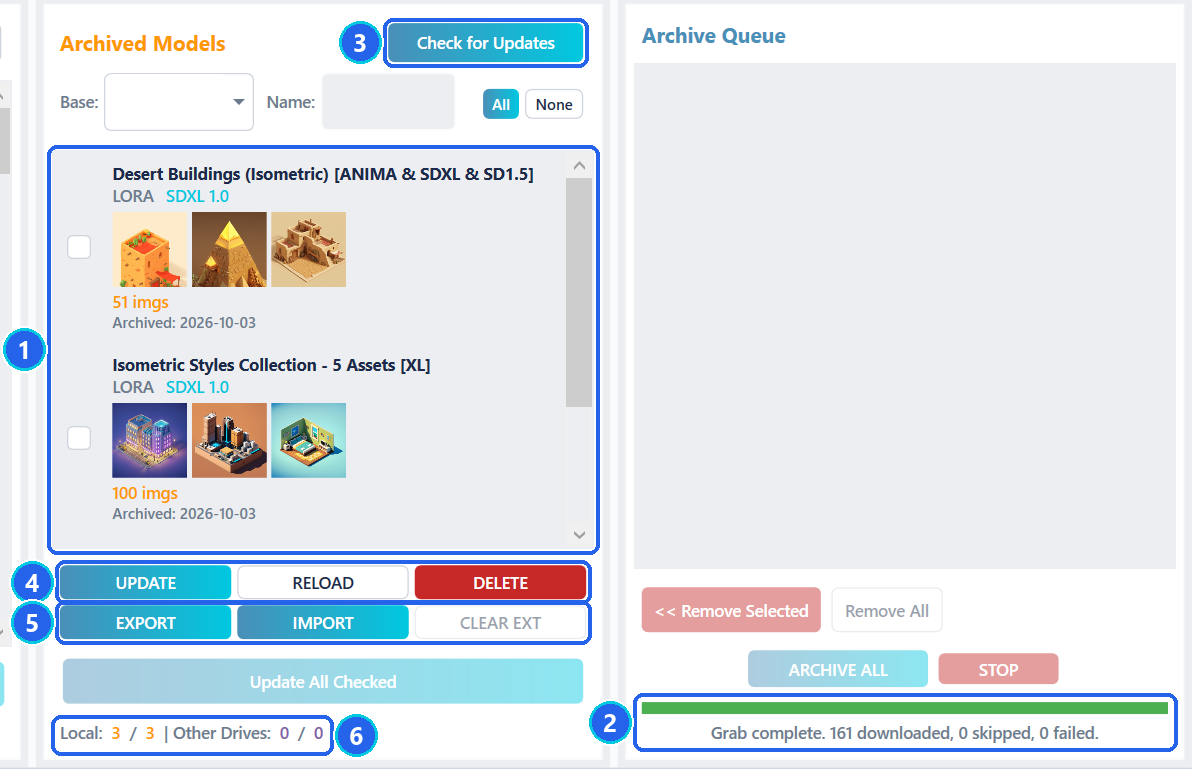
- 1Archived Models — your catalogue, filterable by base and by name. Right-click a card to open its folder, its Civitai page, its entry in Models, or to delete it.
- 2The result — how many images were downloaded, skipped and failed.
- 3Check for Updates — asks Civitai whether your archived models have new versions.
- 4UPDATE fetches the new images of the ticked models; RELOAD re-reads their information from disk without going online; DELETE removes them (see Removing models).
- 5EXPORT, IMPORT, CLEAR EXT — your collections across drives (see Several drives).
- 6Local / Other Drives — how many models you have here, and how many are known on your other drives.
Browse the gallery
Open Gallery, pick a model in the list, and click an image: its generation data appears on the right, ready to reuse.
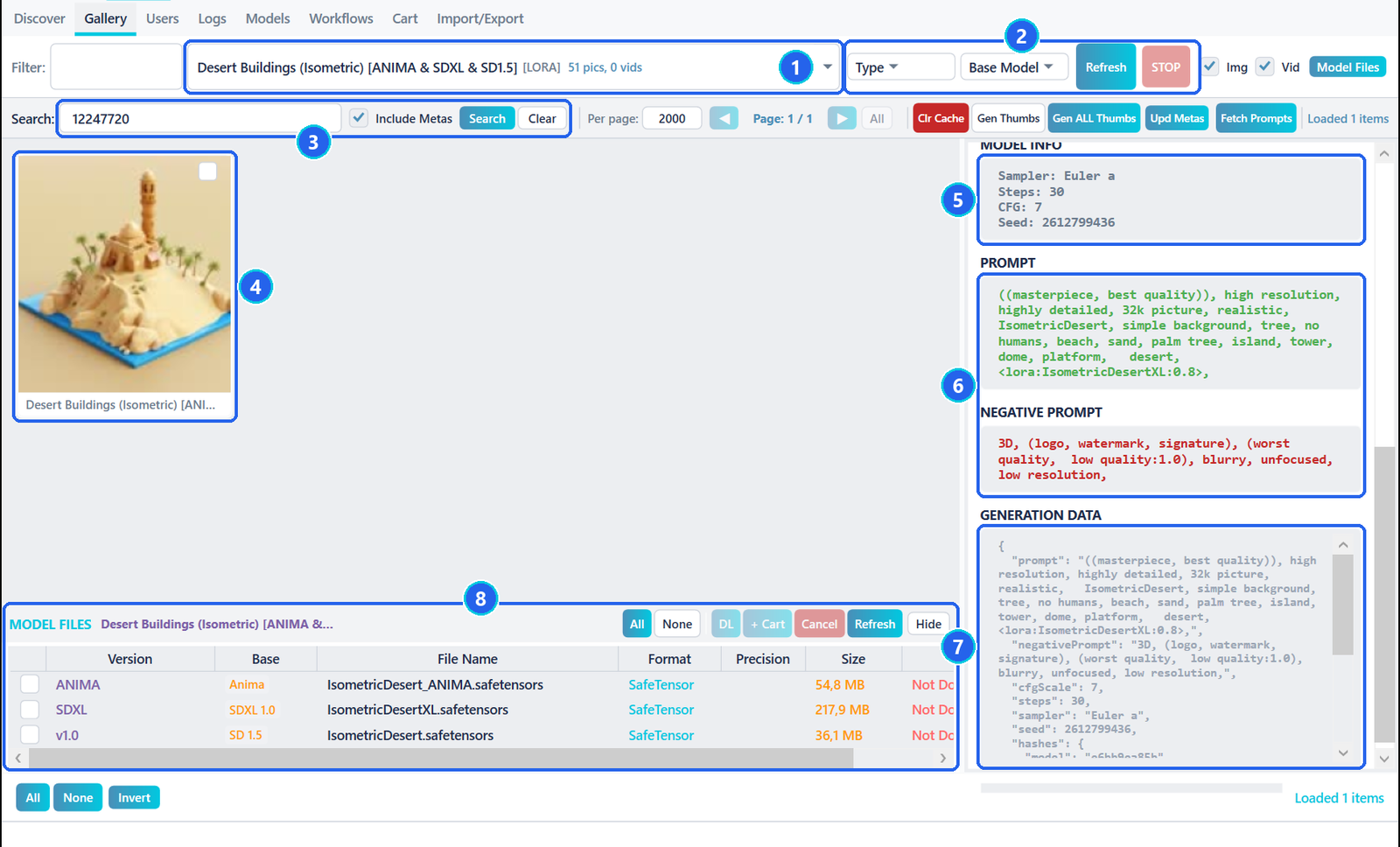
- 1The model — the list shows each model's type and its number of images and videos. Filter narrows the list by name.
- 2Type and Base Model filters, Refresh and STOP.
- 3Search — in file names, model names and authors; tick Include Metas to search the prompts too.
- 4The images — click one to select it. Img and Vid (top right) show or hide images and videos.
- 5Model info — sampler, steps, CFG and seed.
- 6Prompt and negative prompt.
- 7Generation data — everything Civitai recorded for that image.
- 8Model files — the files of every version of the model, to download (DL) or add to the cart (+ Cart) without leaving the gallery. Model Files at the top shows or hides this panel.
The prompt of the image above, as the app shows it:
((masterpiece, best quality)), high resolution, highly detailed, 32k picture, realistic, IsometricDesert, simple background, tree, no humans, beach, sand, palm tree, island, tower, dome, platform, desert, <lora:IsometricDesertXL:0.8>,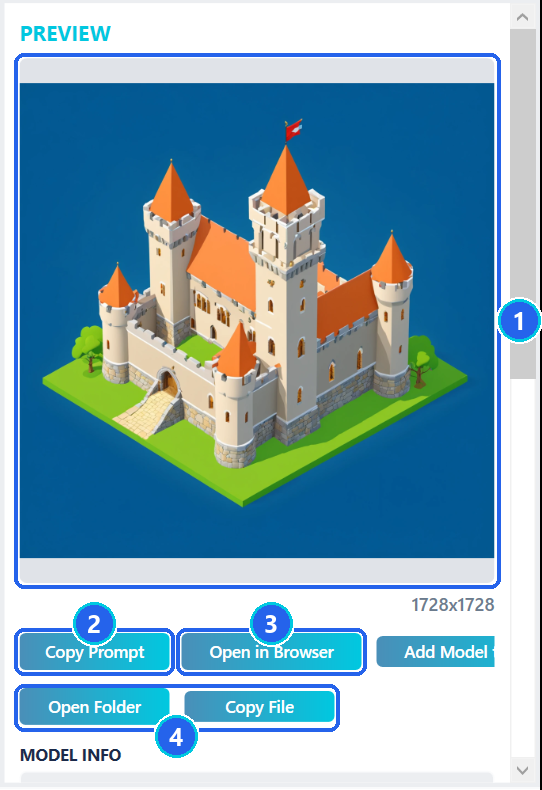
- 1Preview — the selected image, with its size; videos play here.
- 2Copy Prompt — puts the prompt on the clipboard.
- 3Open in Browser — the image on Civitai; Add Model to Cart queues all the files of its model.
- 4Open Folder shows the file in Windows Explorer; Copy File (Ctrl + C) copies it, ready to paste into another folder.
Download model files
Open Models: every archived model is listed with its files, version by version. Tick the files you want, then Send to Cart.
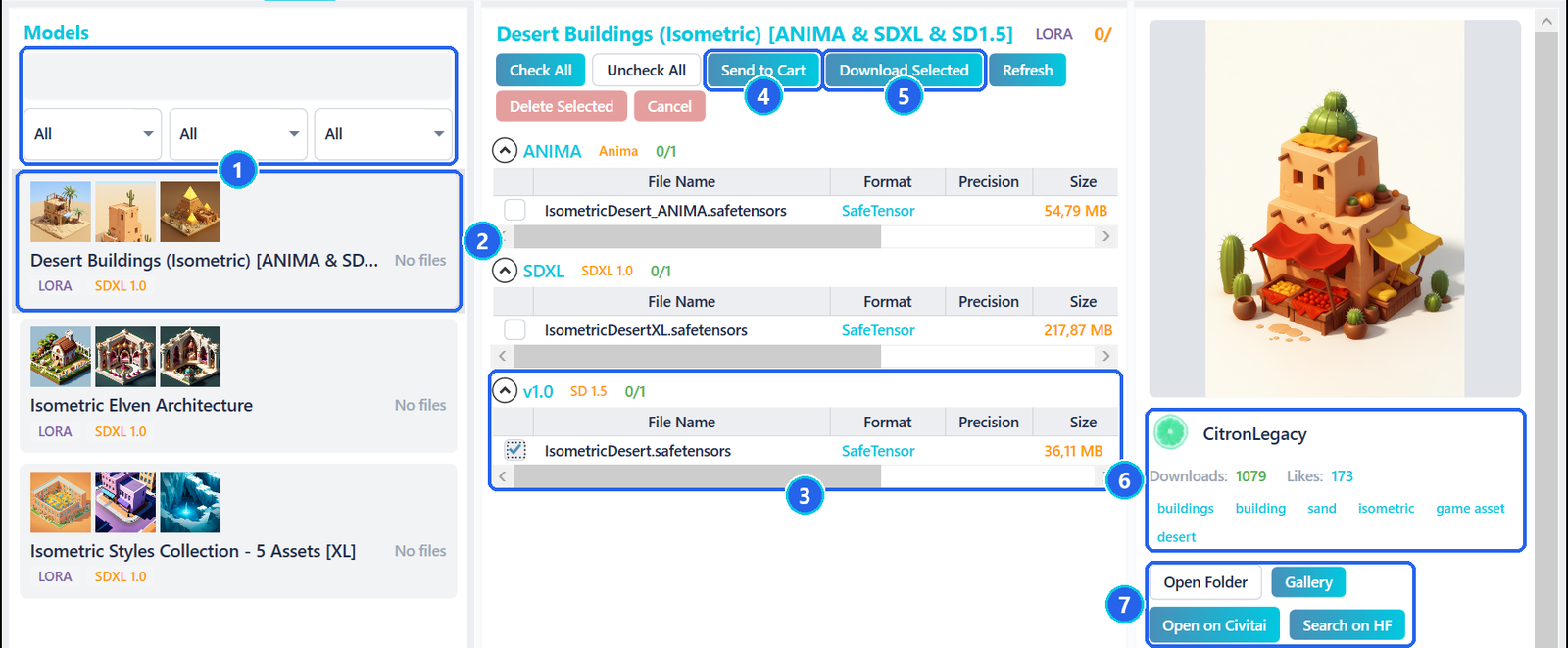
- 1Search and filters — every word must match (name, base model or type); then type, base model and download status.
- 2The models — No files until something of that model is on disk.
- 3Versions and files — format, precision, size and, once downloaded, the status.
- 4Send to Cart — queues the ticked files (recommended for several files).
- 5Download Selected — downloads the ticked files right away, with a progress bar.
- 6About the model — creator, downloads, likes, tags, then its description below.
- 7Links — Open Folder, Gallery, Open on Civitai, Search on HF.
At the bottom of the list, DL All Last queues the latest version of every model of the filtered list in one go: a window asks which base model family and which precision you want, and can re-read each model on Civitai first so that a version published last week is not missed.
Then open Cart and click Start Download.
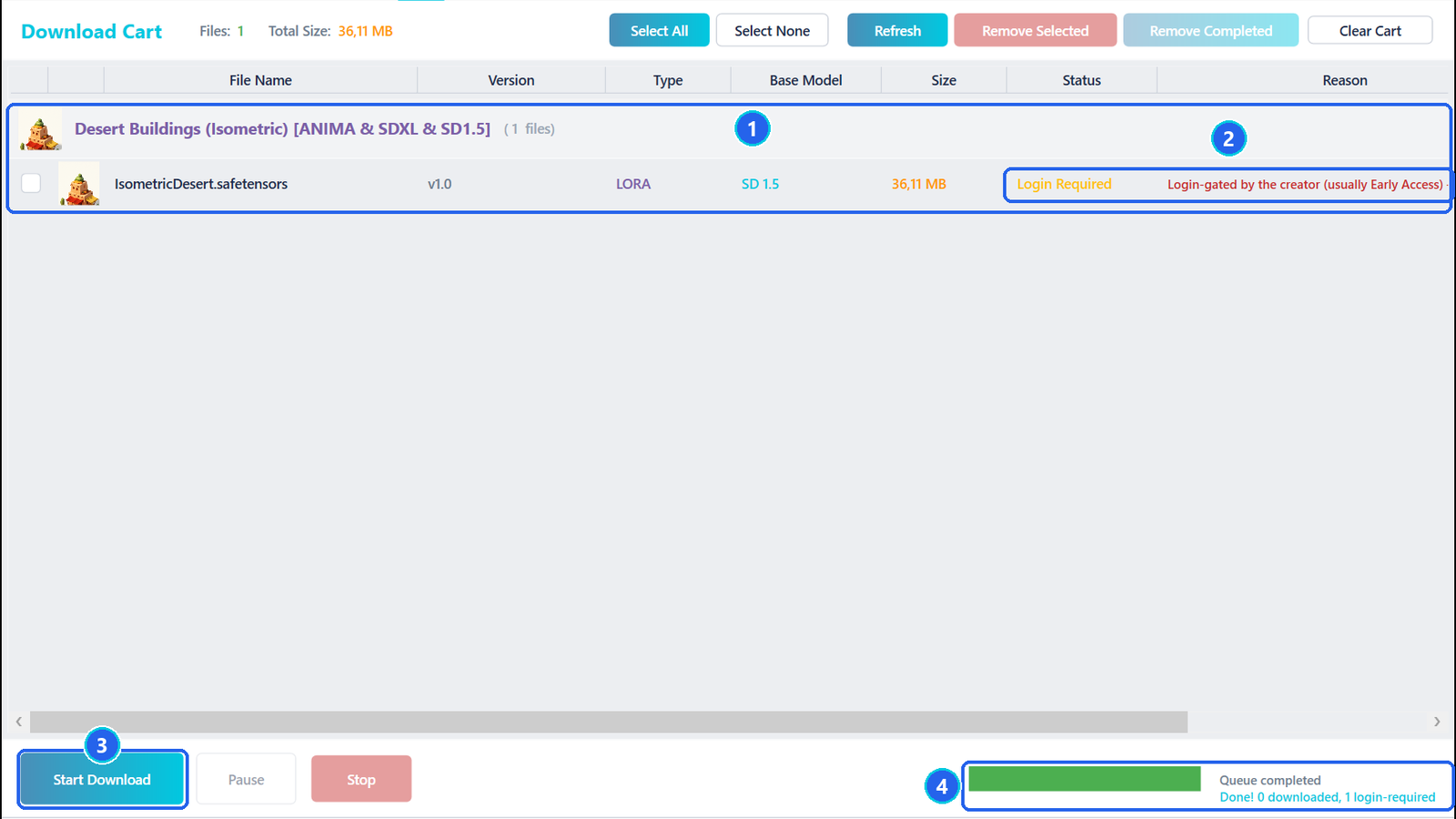
- 1The cart — files grouped by model, with version, type, base model and size.
- 2Status and reason — here Login Required: the creator only allows signed-in downloads. Add your token in Settings and press Start Download again.
- 3Start Download, Pause (resume with Start) and Stop.
- 4Progress and summary — how many files came, and how many failed and why.
RecapDLs\.Users
The same images, sorted by the people who made them: useful to find the other work of a creator whose style you like.
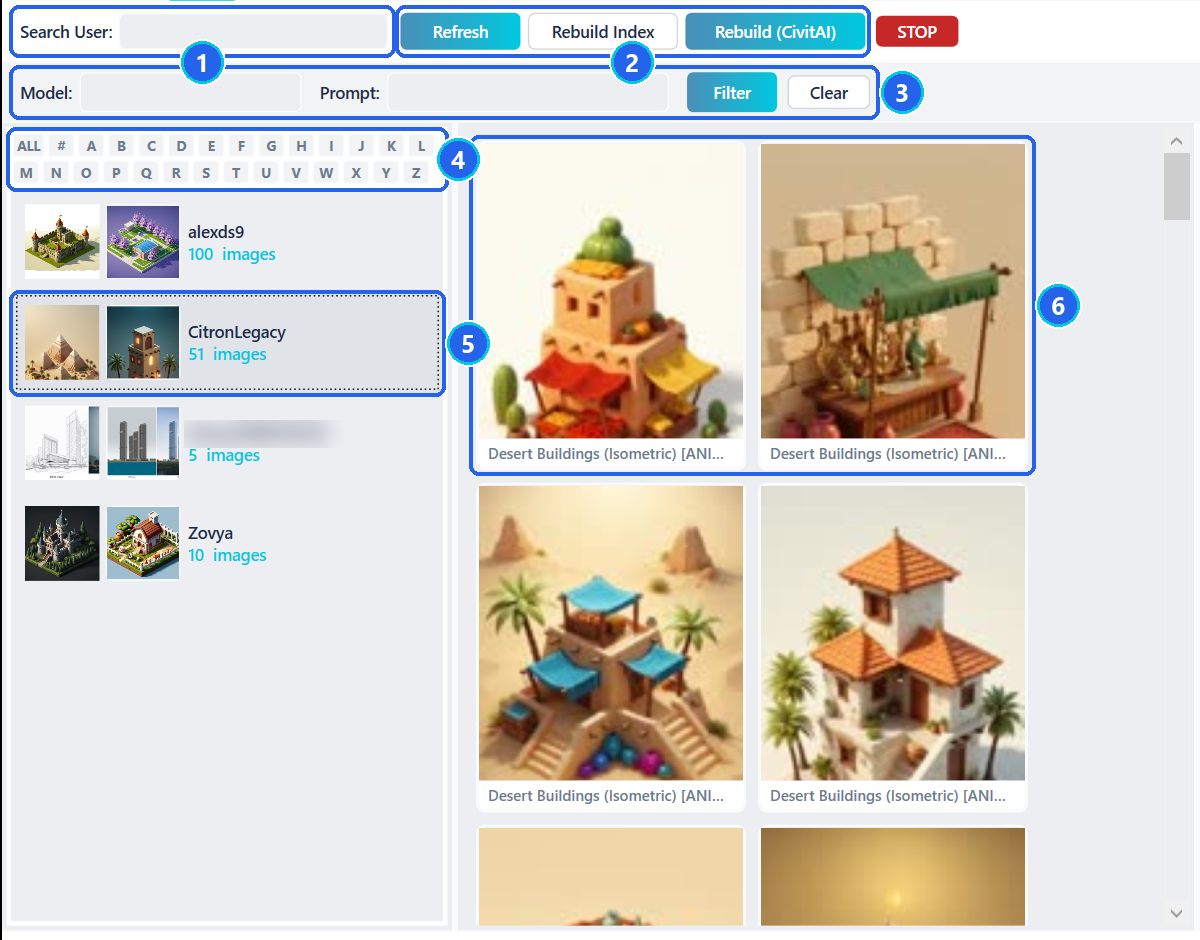
- 1Search User — filters the list by name.
- 2Refresh the list; Rebuild Index rebuilds it from your files, offline; Rebuild (CivitAI) recovers the authors of images archived without one.
- 3Model and Prompt filters for the selected creator.
- 4The alphabet — jump to the names starting with a letter.
- 5A creator — with how many of their images you have.
- 6Their images — click one for the preview, the prompt and the same buttons as in Gallery.
Workflows
Civitai also hosts ready-made generation workflows. Archive them like any model (type Workflows in Discover); this tab shows them as cards, with their gallery images.
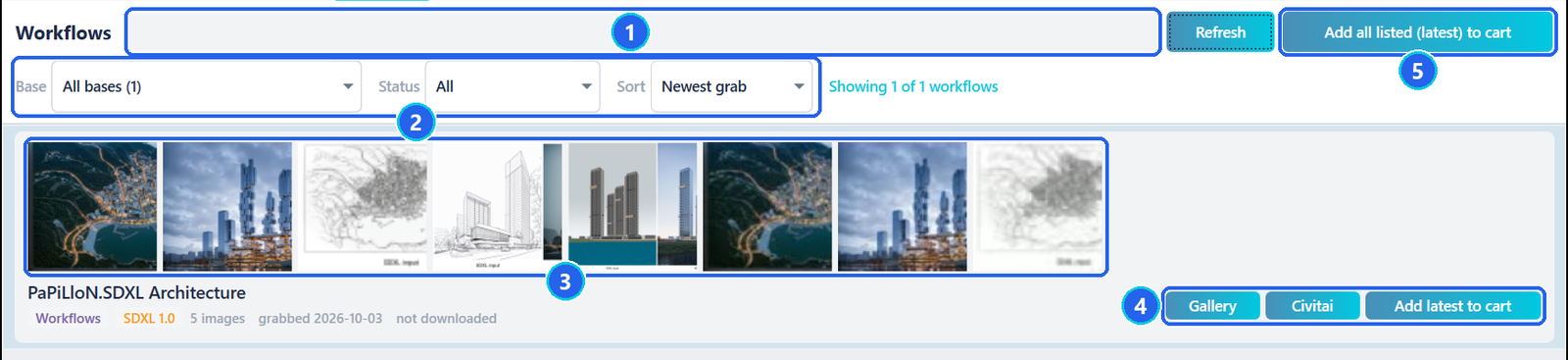
- 1Search — every word must match: name, base model or type.
- 2Base, Status (downloaded or not) and Sort.
- 3Previews — click one to open the workflow's full gallery.
- 4Gallery, Civitai, Add latest to cart — the last one queues the newest version of this workflow.
- 5Add all listed (latest) to cart — the same for every workflow of the filtered list.
As everywhere, nothing downloads until you press Start in the Cart tab.
Several drives
Your collection spreads over several drives? Each copy of the app can tell the others what it holds, so you never download a model you already have elsewhere — even when that drive is not plugged in.
- On the first drive, in Import/Export (or with EXPORT in Discover), click EXPORT, give the drive a name, and save the small JSON file it offers.
- On the other drive, click IMPORT and pick that file.
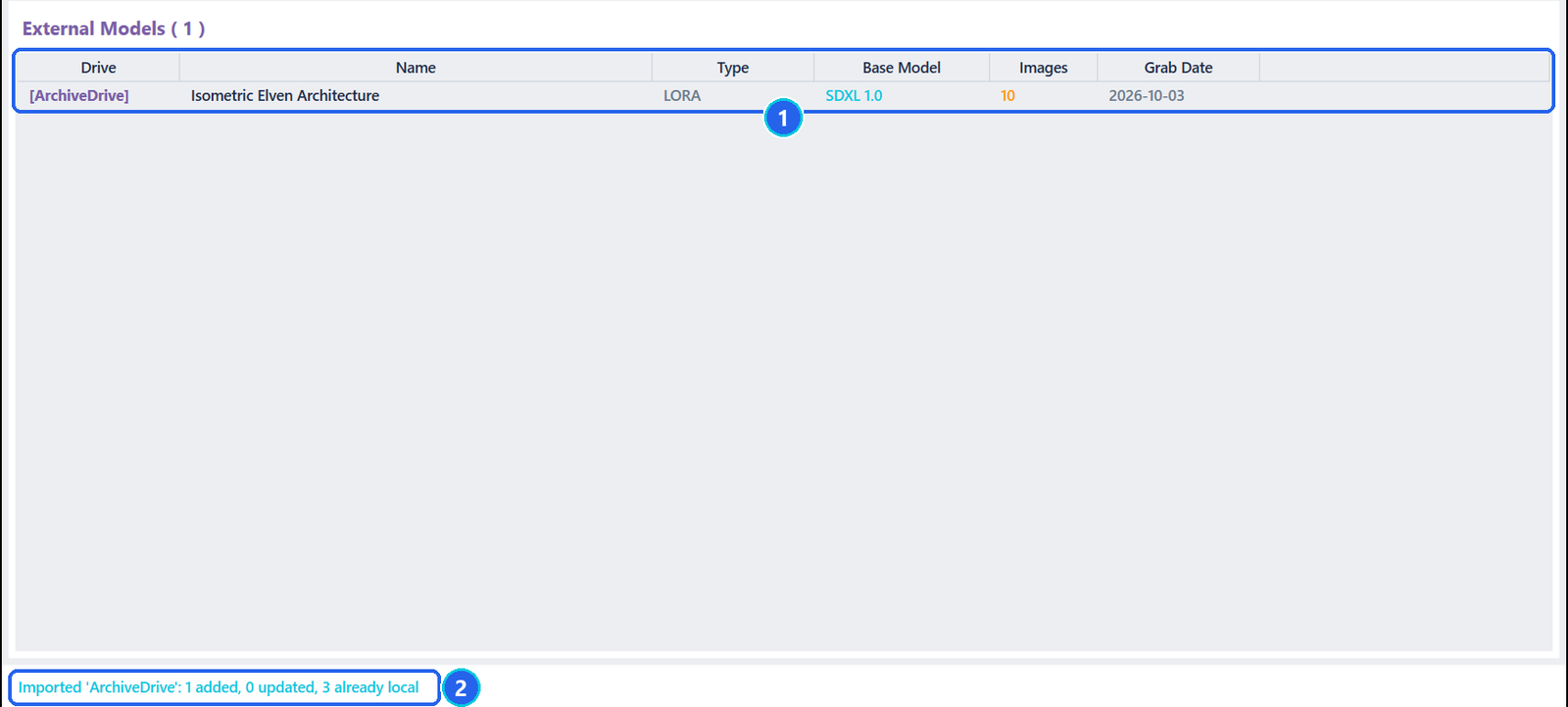
- 1External Models — what the other drive holds, tagged with its name.
- 2The summary — models added, updated, and already on this drive.
Those models are skipped by ARCHIVE ALL and counted under Other Drives in Discover. CLEAR EXTERNAL forgets them.
Removing models
Every list in the app comes from your archive, not from the folders: deleting a folder in Windows Explorer does not remove a model from the app. Remove it from the app instead.
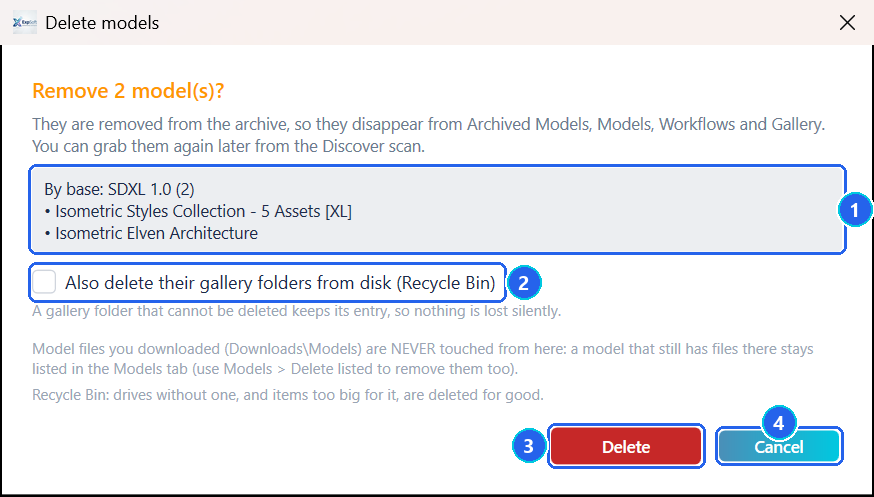
- 1What will go — the ticked models, grouped by base model.
- 2Also delete their gallery folders — unticked by default: the images stay on disk unless you tick it, and then go to the Recycle Bin.
- 3Delete — the models leave the archive, so they disappear from Archived Models, Models, Workflows and Gallery.
- 4Cancel (Esc) — changes nothing.
- One model: right-click its card in Archived Models › Delete from archive…
- Downloaded model files: DELETE never touches them. To remove those too, filter the list in Models (for example by base model) and click Delete listed…: two boxes let you send the gallery folders and the model files to the Recycle Bin.
- Before each removal the archive is backed up in
_backups\, and a model removed by mistake can be found again with a Discover search.
Settings and maintenance

- 1Save Settings — nothing is saved without it.
- 2Clean UserDB — removes the creators that no longer have any image on disk.
- 3Fix Base Labels — repairs the base model of your archived models from their folders, if a model stopped appearing under the right base filter.
- 4Purge Missing — removes from the archive the models whose gallery folder no longer exists (deleted in Explorer, moved to another drive). It shows the count and asks first; nothing is deleted from disk.
Logs
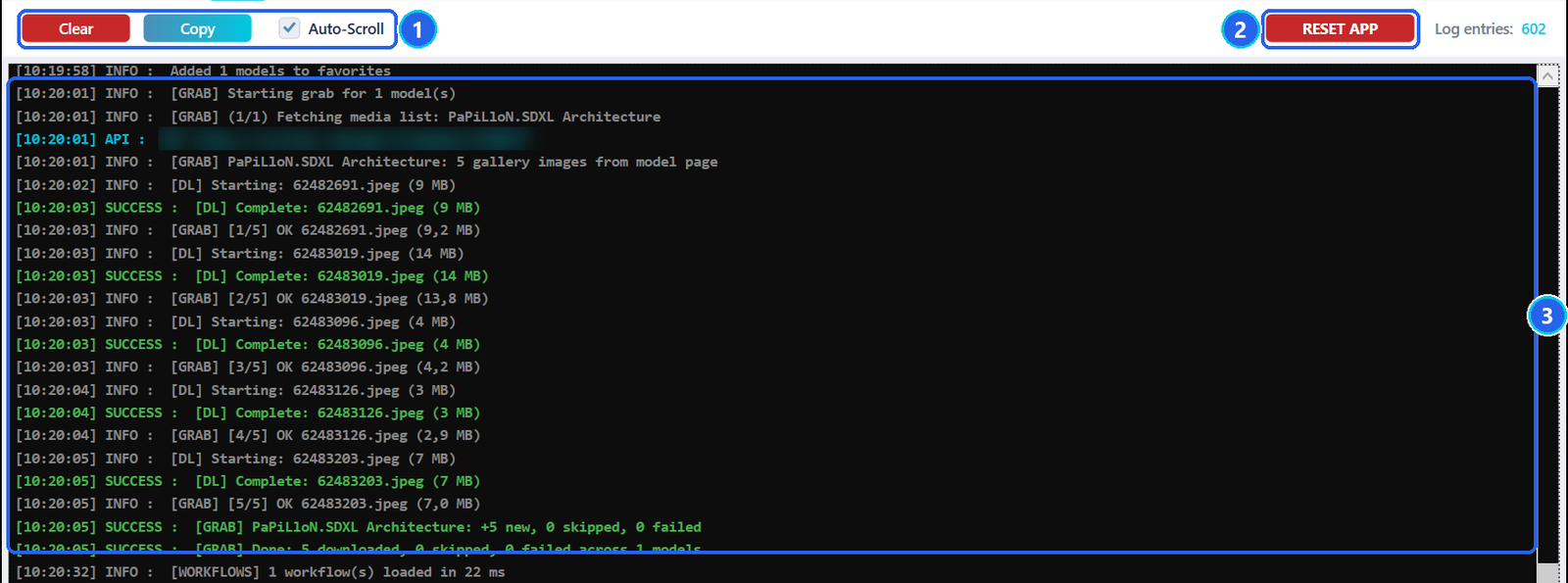
- 1Clear, Copy (the whole log to the clipboard) and Auto-Scroll.
- 2RESET APP — deletes all the app's data: archive, galleries, downloaded model files, cart. It asks twice, cannot be undone, and closes the app. Only use it to start from scratch.
- 3The log — information in grey, success in green, warnings in orange, errors in red. Under it, Recent Downloads shows the last images.
Files the app writes
Everything stays in the app's folder:
Downloads\Galleries\<type>\<base>\<model>\— the archived images, each with a_meta.json(its generation data) and a thumbnail.Downloads\Models\— the model files you downloaded, sorted by type, base model and model.archived_models.json— your catalogue;_backups\keeps its last versions.download_cart.json— the cart, kept between sessions;RecapDLs\— the failed downloads, with their reason.external_collections.json— the collections imported from other drives.configFile.xml— your settings, tokens included: do not share it.cache\,models_cache\,thumbs_cache\and the*_cache.jsonfiles — information from Civitai and thumbnails, rebuilt when needed.discover_debug.log,gallery_debug.log— technical logs, useful if something goes wrong.ExpSoft_AI_Models_Manager.exe.WebView2\— the browser data of the More Tools ? tab.
Troubleshooting
Windows asks me to install .NET when I start the app
The app needs the free .NET 8 Desktop Runtime. Accept the download Windows offers, install it, then start the app again.
A file says "Login Required" in the cart
Its creator only allows downloads to signed-in users. Paste your Civitai API token in Settings, click Save Settings, then press Start Download again: no need to restart the app.
A button says "Generate on Civitai" instead of downloading
The creator has disabled downloads for that version: it can only be used online, on Civitai. The button opens its page there.
My download stopped halfway
Press Start Download again: the partial file is kept and the download resumes from where it stopped, even after closing the app. The Reason column and RecapDLs\ say why it stopped.
I deleted a folder in Explorer but the model is still listed
The lists come from the archive, not from the folders. Use DELETE in Discover, Delete listed… in Models, or Settings › Maintenance › Purge Missing (see Removing models).
A model does not show under the base model I filter
Run Check for Updates in Discover to refresh the bases of your archived models, or Settings › Maintenance › Fix Base Labels to repair them from their folders. A model can exist for several base models: the filters match any of them.
Video previews have no thumbnail
Thumbnails of videos are made with FFmpeg. Install it and set FFmpeg Path in Settings, then use Gen Thumbs in Gallery.
The app takes a while to start
Start-up time grows with the size of your collection. Keep the app's folder on an SSD if you can.