Before you start
Splitting a conversation into one track per voice by hand means scrubbing through the whole recording, cutting every sentence and filling the gaps with silence so the tracks stay in sync — hours for a one-hour podcast. The Diarizer listens to the whole file, finds who speaks when, and writes the tracks for you: a one-hour, two-host podcast takes under two minutes on a recent NVIDIA card. Use the tracks for voice cloning, lip-sync, dubbing, captions or a clean mix.
- Windows 10 or 11, 64-bit, with 8 GB of RAM and about 5 GB of free disk (1.5 GB for the CPU package).
- The free .NET 8 Desktop Runtime. If it is missing, Windows offers to download it the first time you start the app.
- An NVIDIA card with 6 GB of video memory or more makes it much faster, but it is not required: the app also runs on the processor.
- ExpSoft Diarizer comes with the ExpSoft subscription on Patreon, from The Supporter tier (Tier 1) and above.
- Three packages:
50xxfor RTX 50 series cards,40xxfor RTX 20, 30 and 40 series cards,CPUfor a PC without an NVIDIA card. - A free Hugging Face account. The speaker models are made by pyannote: they are free, but you must accept their conditions before downloading them (Step 1).
The window at a glance
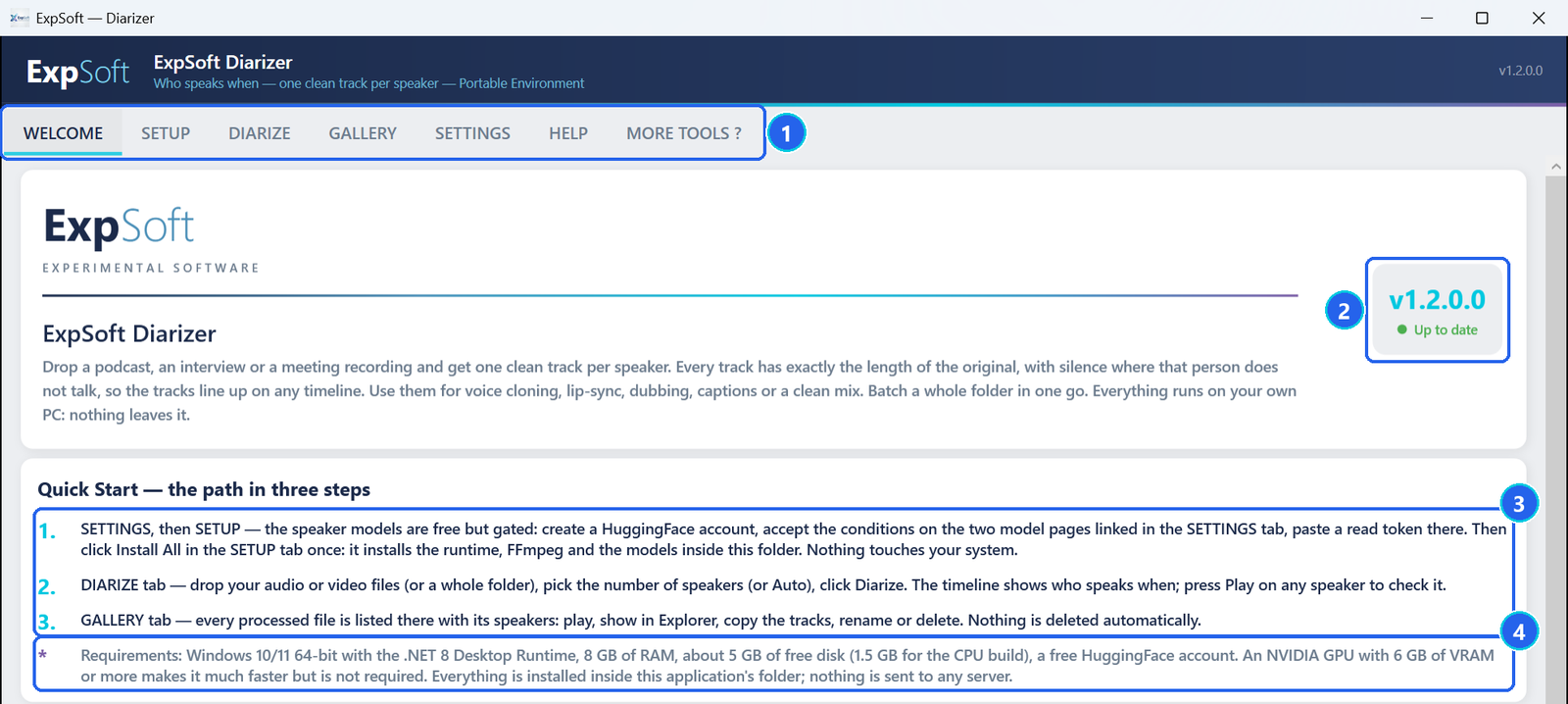
- 1The tabs — Setup installs everything, Diarize splits your recordings, Gallery keeps every result, Settings holds your token and your card, Help repeats the essentials, More Tools ? shows the other ExpSoft tools.
- 2Version badge — says whether a newer version is available; click it to see it.
- 3Quick Start — this guide in three lines.
- 4Requirements — the same list as above.
Every button has a tooltip: hover it to read exactly what it does.
Your free token
Open the SETTINGS tab. You do this once.
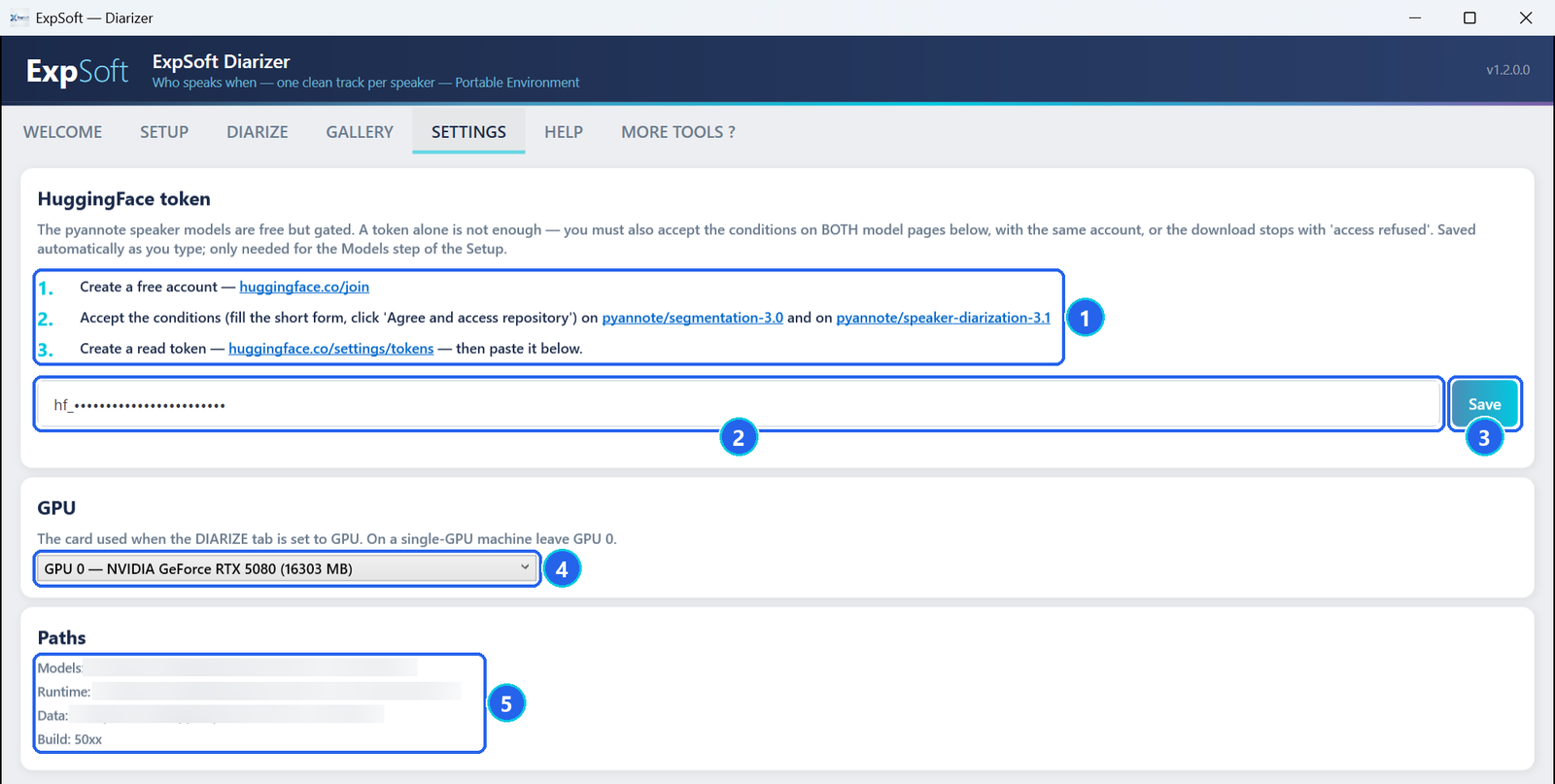
- 1The three links — create a free account; on both model pages, fill in the short form and click Agree and access repository; then create a read token.
- 2The token field — paste the token here. It is saved as you type, kept in
config\settings.jsonnext to the app, and only sent to Hugging Face to download the models. - 3Save — just confirms: the token is already saved.
- 4GPU — the card used when the Diarize tab is set to GPU. With a single card, leave GPU 0.
- 5Paths — where the models, the runtime and your data live.
Install
Open the SETUP tab and click Install All. It happens once.
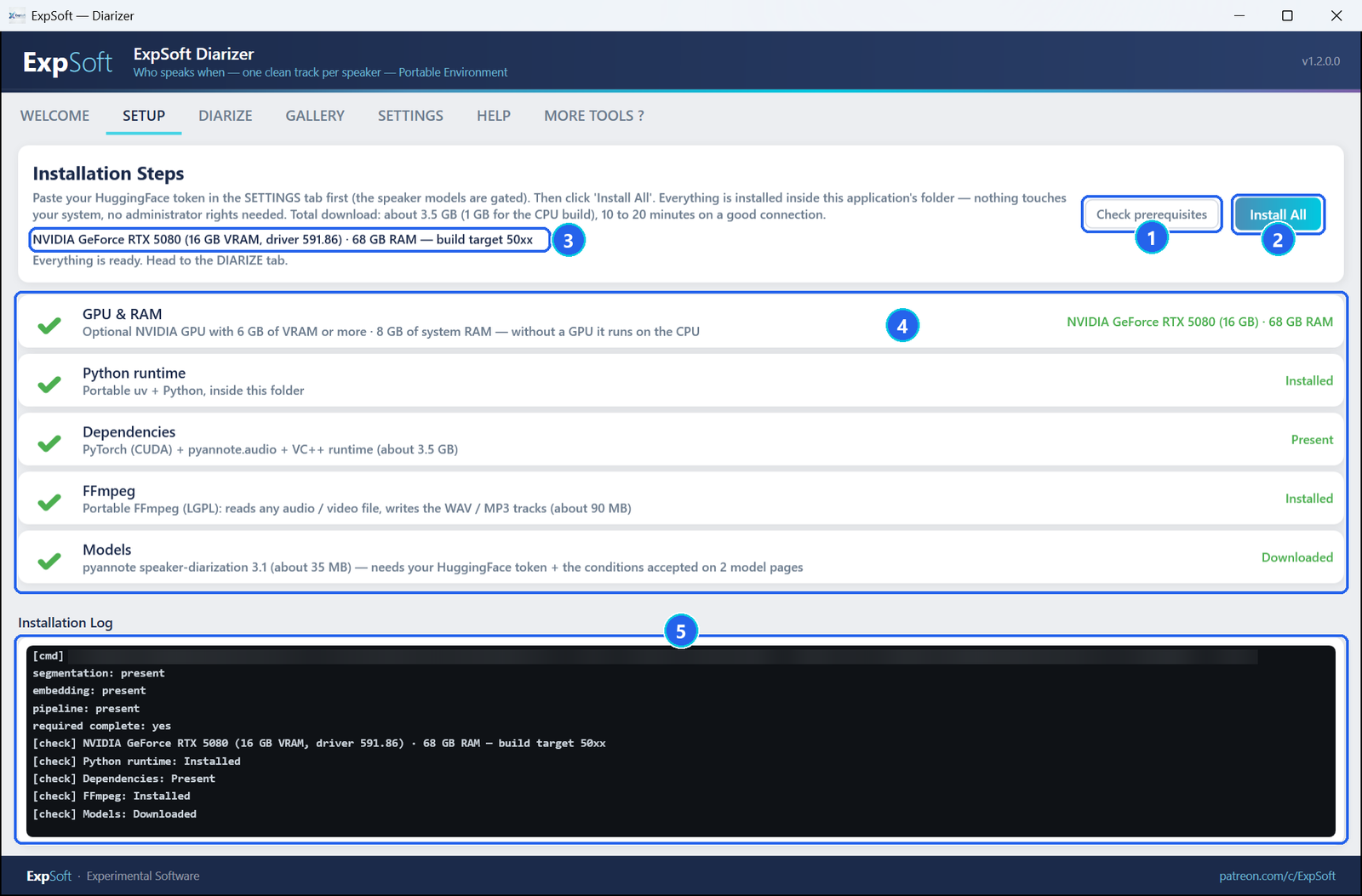
- 1Check prerequisites — scans your card, your memory and what is already installed, and writes what it found in the log. It installs nothing.
- 2Install All — downloads and sets up everything in order: a portable Python, the libraries (about 3.5 GB, 1 GB for the CPU package), FFmpeg (about 90 MB) and the speaker models (about 35 MB, with your token). Allow 10 to 20 minutes on a good connection; on ours it took under 8 minutes.
- 3Your card — its name, video memory and driver, and the system memory.
- 4The steps — a green tick means done. A step already done is skipped next time; a failed step can be retried on its own.
- 5The log — every command and its result, also saved in
data\logs.
models folder into the new app's folder: it is recognised as is, with no token and no download.Split a recording
Open the DIARIZE tab, add your files, choose the options, click Diarize.
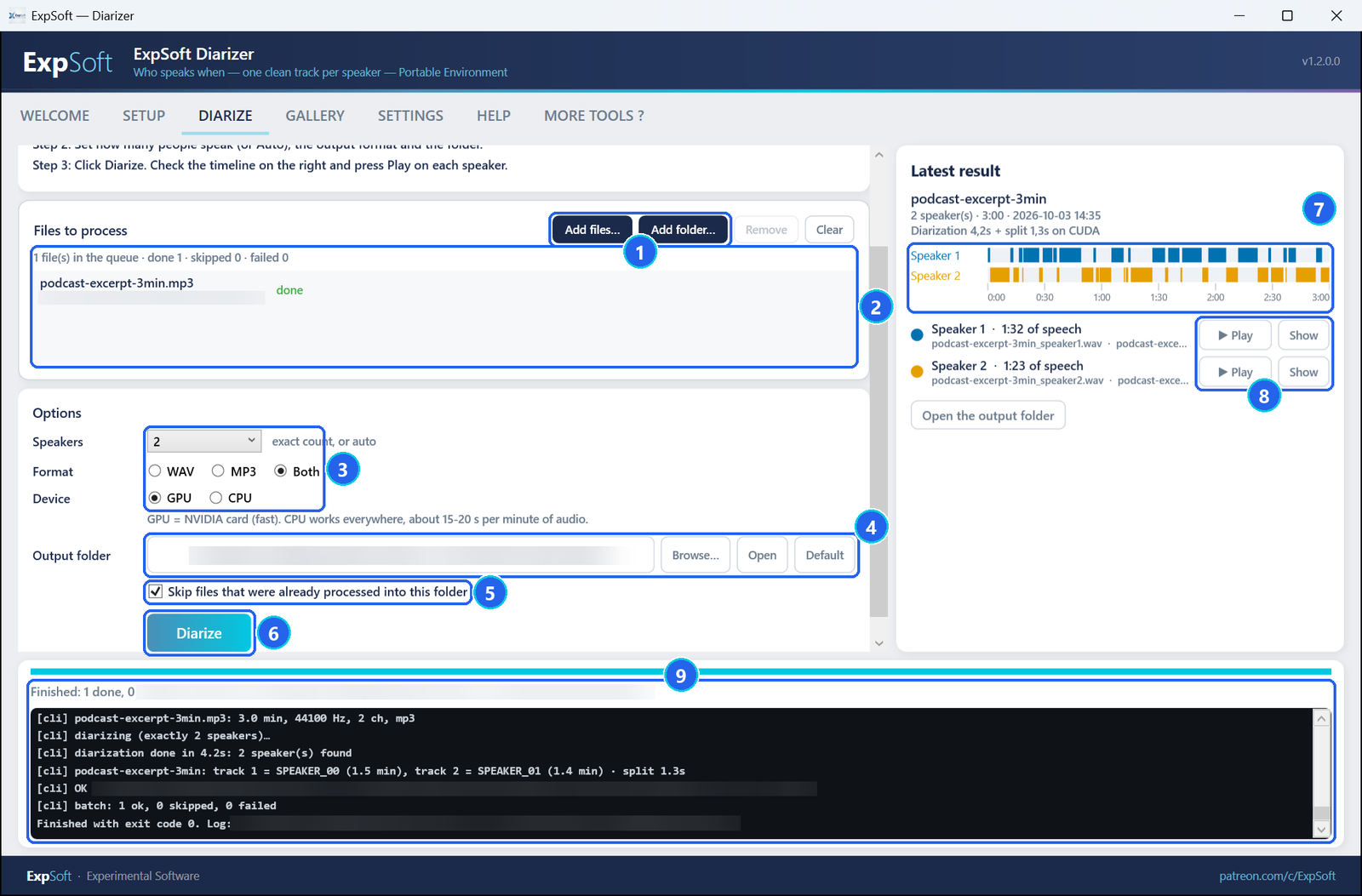
- 1Add files… / Add folder… — or drop files and folders onto the box. Audio (wav, mp3, flac, m4a, aac, ogg, opus, wma) and video (mp4, mkv, mov, webm, avi — their sound is used).
- 2The queue — each file with its state: waiting, done, skipped or failed.
- 3Options — Speakers: the exact number of people if you know it (more reliable), or auto. Format: WAV (lossless, 16-bit, or 24-bit when the source is 24-bit), MP3 (192 kbps, about ten times smaller) or both. Device: GPU (falls back to the processor by itself if no NVIDIA card is usable) or CPU.
- 4Output folder — by default
data\outputs\diarizeinside the app's folder. Browse… picks another one (remembered), Default goes back. - 5Skip files already processed — a file whose result is already in the folder is not processed again, so a long batch resumes where it stopped.
- 6Diarize — processes the whole queue; the models load once for the batch. Cancel stops at once: no half-written track is left, finished files are kept.
- 7Latest result — who speaks when: one lane per speaker, one bar per moment that person talks.
- 8Play / Show — listen to one speaker inside the app, or open the folder with that track selected.
- 9The log — the progress of the run, file by file.
The gallery
Every file you processed is listed in the GALLERY tab, with its speakers. Nothing is deleted automatically.
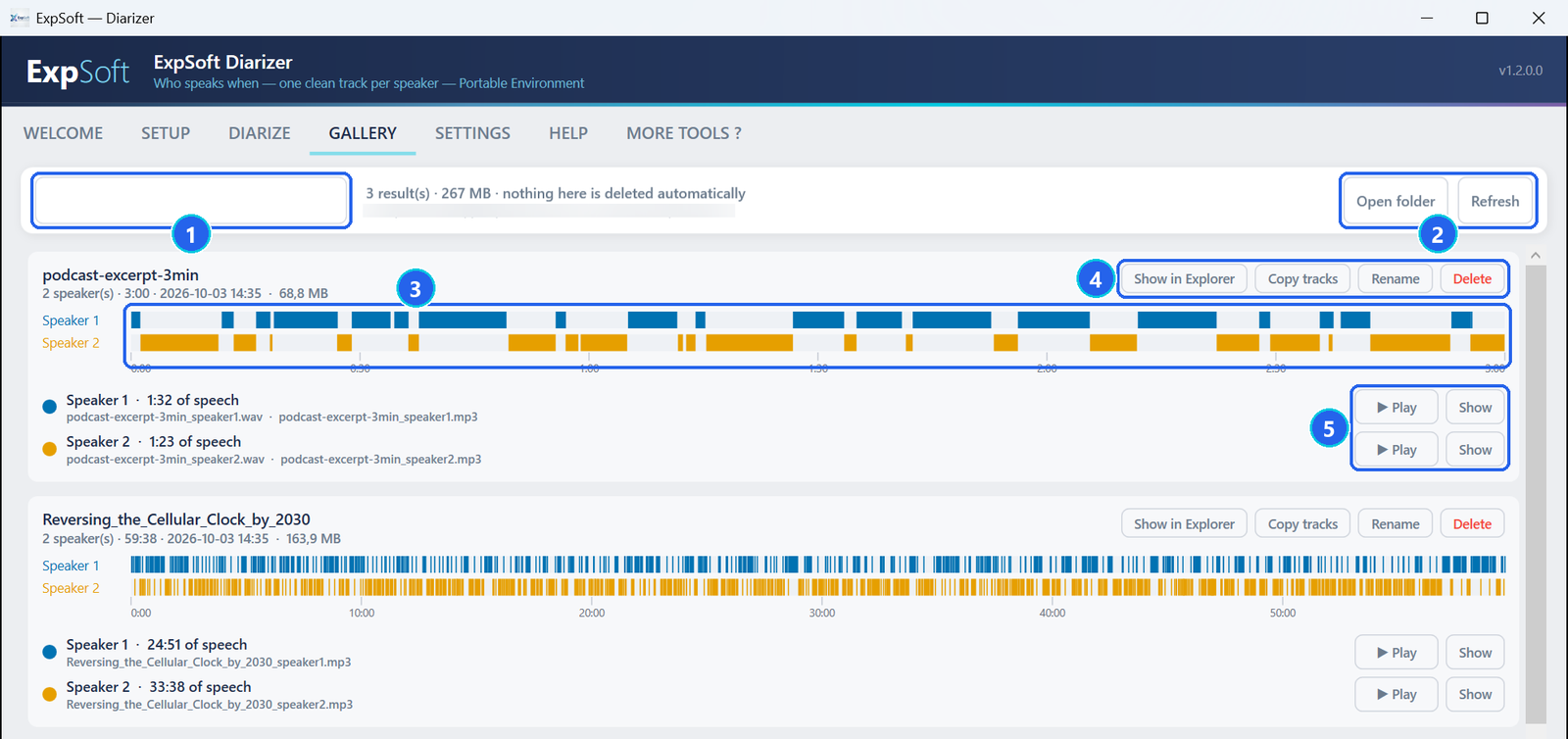
- 1Filter — type part of a name to find a result.
- 2Open folder / Refresh — the gallery shows the output folder of the Diarize tab; refresh it after changing files outside the app.
- 3The timeline — who speaks when, over the whole file.
- 4Show in Explorer · Copy tracks · Rename · Delete — copy every track of a result to paste it in Explorer, a chat or your editor; rename all its files at once; delete them (the app asks first — your original recording is never touched).
- 5Play / Show — per speaker, as in the Diarize tab.
What you get
For a recording named interview.mp3:
interview_speaker1.wav   interview_speaker1.mp3
interview_speaker2.wav   interview_speaker2.mp3
interview.rttm
interview.diarization.json- One track per speaker, exactly as long as the original, with silence where that person does not talk: drop them on a timeline and they line up. Speaker 1 is the first voice the model labelled, not necessarily the first one you hear.
- The .rttm — who speaks when, in RTTM, the standard text format of speaker diarization.
- The .json — the same segments, the talk time of each speaker, the settings and the timings. It is written last: its presence means the file is done, which is how a batch resumes.
Where two people talk at the same moment, that moment is written into both of their tracks.
How to get a good split
- Give the exact number of speakers when you know it. It is the single biggest lever. auto is fine for unknown recordings.
- Two lanes that mirror each other on the timeline mean the same person was split in two: run again with one speaker less.
- Clean audio in, clean tracks out. Background music, heavy reverb and people talking over each other make the split harder.
- Check with Play. Press Play on each speaker to hear only them.
Not in this version: transcription (who said what, as text), naming the speakers from voice samples, live microphone input.
How fast is it?
Measured on our test PC (RTX 5080, 16 GB of video memory). Your card will give other numbers.
| Recording | Device | Time |
|---|---|---|
| One-hour podcast, two hosts → two MP3 tracks | GPU | 1 min 50 s — 80 s to find who speaks when, 27 s to write the tracks |
| Three-minute excerpt → WAV and MP3 tracks | GPU | 6 seconds |
| A batch of three files (two 2-minute recordings and a 90-second video), speakers on auto | GPU | 13 seconds |
| Thirty seconds of 24-bit audio | CPU (20 threads) | 4.4 seconds to find who speaks when |
The engine used about 4.3 GB of video memory at its peak on the one-hour file.
Files the app writes
Everything the app installs and writes stays in its folder.
runtime\— the portable Python, its libraries and FFmpeg, installed by Setup.models\— the three speaker models.data\outputs\diarize\— your results (unless you picked another output folder).data\logs\—latest.log, onesetup_*.logper day and onerun_*.logper run.config\settings.json— your token and your settings.cache\— download cache of the setup.
Troubleshooting
Windows asks me to install .NET when I start the app
The app needs the free .NET 8 Desktop Runtime. Accept the download Windows offers, install it, then start the app again.
"Access refused" during the Models step
The conditions of a model were not accepted with the account of the token. Open the two pages linked in SETTINGS, click Agree and access repository on each, then retry the Models step.
"Smart App Control blocked a Python extension"
A Windows policy of your PC, not a broken install: the app retries by itself. If the message comes back, run the step once more.
The same person shows up as two speakers
Set the exact number of speakers instead of auto, or run again with one speaker less. Untick Skip files already processed, or delete the old result in the gallery first, so the file is processed again.
The More Tools tab is blank
It needs the WebView2 runtime and an internet connection; the link it shows opens the catalogue in your browser.
Something went wrong. What should I send?
data\logs\latest.log has the full story, and every run writes its own run_*.log. Send them to ExpSoft with a word on what you clicked.