What it is for
A shelf of audio CDs is music you already own, locked on discs. Turning it into files by hand means copying each track, typing every title, artist and year, hunting for the cover and naming everything consistently — album after album.
Mp3 Extractor does the whole job from one window: insert a disc, click Load Disc, and the album, artist, year, track titles and cover appear by themselves. Choose a format, click Rip, and every track lands in its own Artist - Album folder, fully tagged, with the cover embedded and, when they exist, synced lyrics.
The result is a clean, fully labelled audio collection: ready for your phone or your player, and a solid base for an audio dataset later — built only from discs you own and have the right to use.
Before you start
- Windows, 64-bit, with the free .NET 8 Desktop Runtime. If it is missing, Windows offers to download it the first time you start the app.
- An audio CD drive, internal or USB.
- An internet connection for the one-time installation and for the album lookups. No account, no key, no subscription, no GPU.
- No installer: unzip the release into a folder of your choice and run
ExpSoft_Mp3_Extractor.exe. Once installed, the folder weighs about 600 MB and holds everything; you can move it, even to a USB stick.
The WELCOME tab
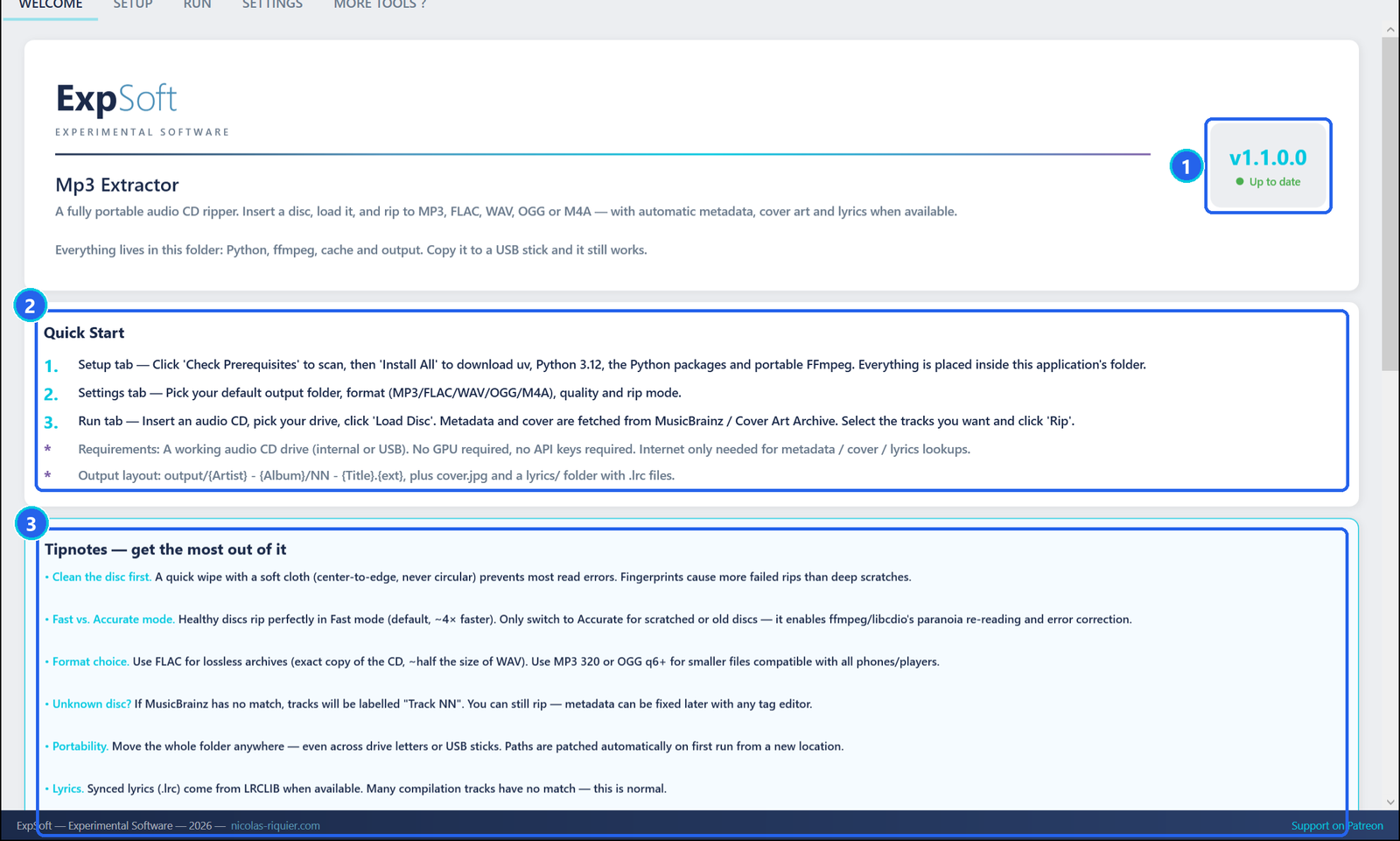
- 1Version — the installed version; it says when a newer one is available (click it to see the other ExpSoft tools).
- 2Quick Start — the three tabs to use, in order: SETUP, SETTINGS, RUN.
- 3Tipnotes — clean the disc, choose the format, Fast or Accurate, unknown discs, moving the folder, lyrics.
Further down, the tab shows the legal notice, the licences of every component and the online services used.
Install once (SETUP tab)
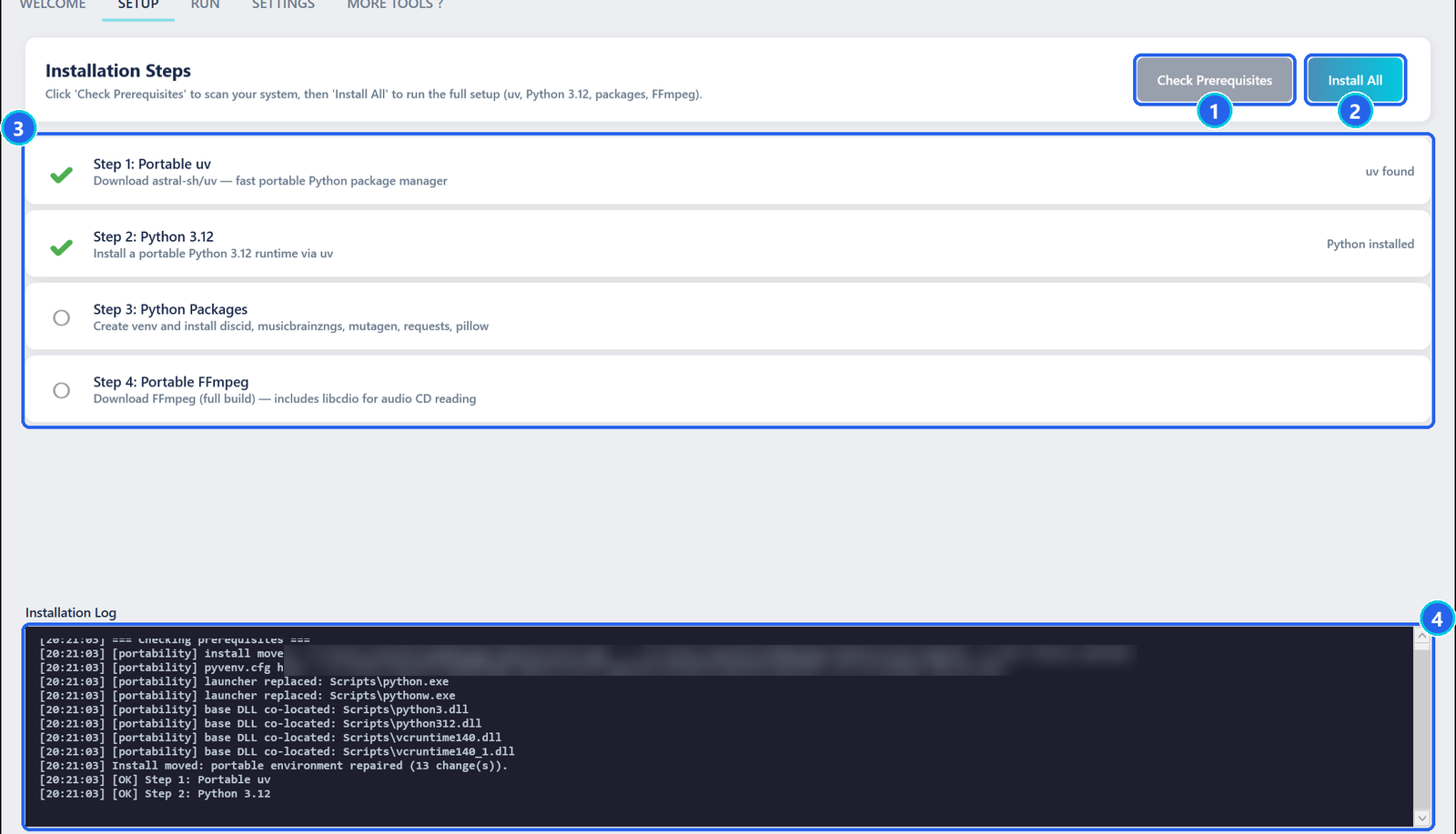
- 1Check Prerequisites — looks at the four parts of the install and really starts its Python. If the folder was moved, it repairs the install first.
- 2Install All — downloads what is missing into the app's own folder: uv, Python 3.12, the Python packages and FFmpeg (full build, the one that reads audio CDs). Finished steps are skipped.
- 3The four steps — a green tick for each part that is ready.
- 4Installation log — every action, with the time. Here, the lines tagged [portability] show the repair of a moved install.
Click Check Prerequisites, then Install All, and wait until the four steps are green. It is done once: nothing is installed anywhere else on the PC.
Load the disc (RUN tab)
- Insert the audio CD. Clean it first if it has fingerprints: they cause more failed reads than scratches.
- Choose the drive 1 — Refresh scans again, for example after plugging in a USB drive — and click Load Disc 2.
- A few seconds later, the album appears: cover, artist, album, year and every track with its title and duration.
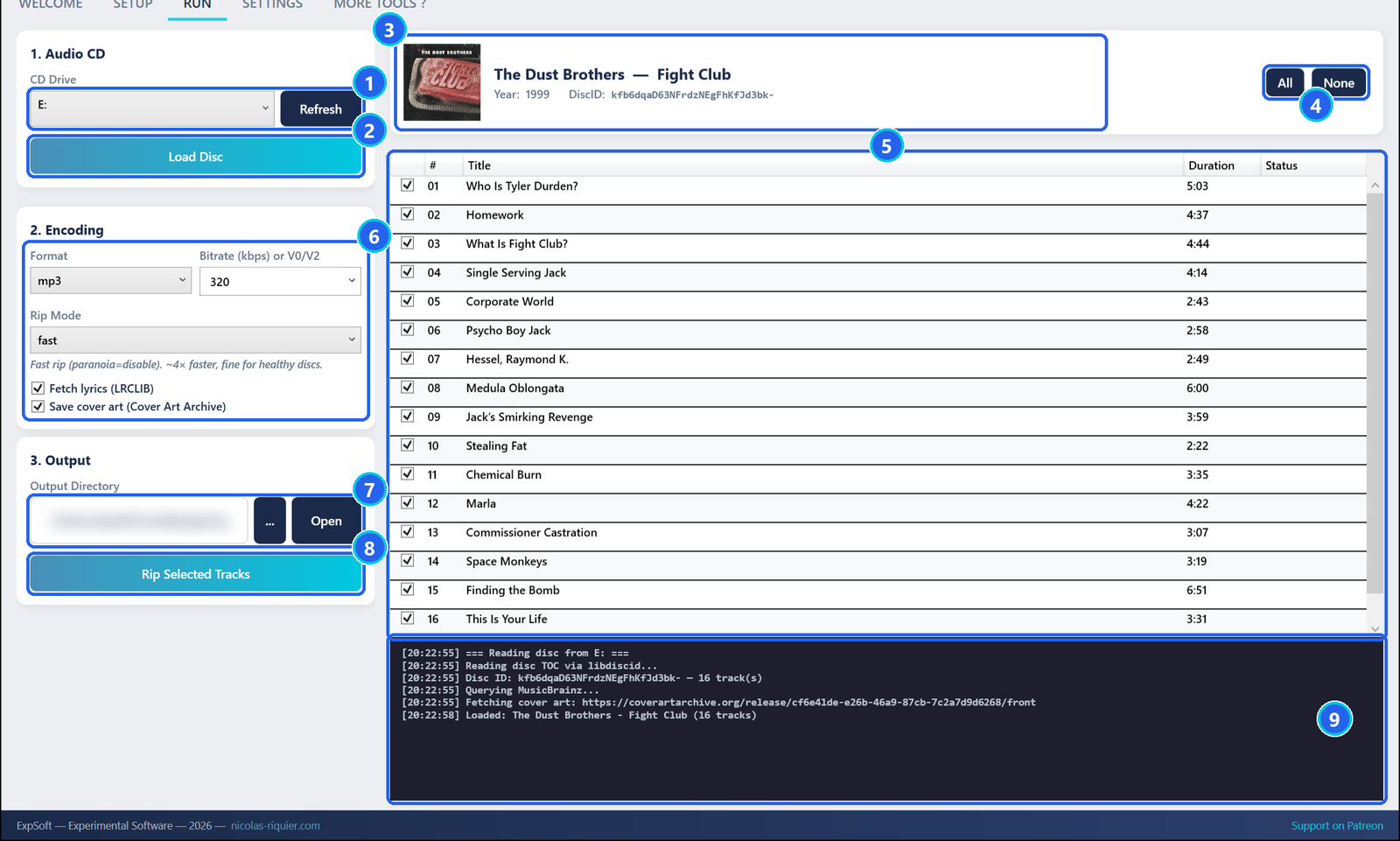
- 1CD Drive · Refresh — the optical drives of this PC.
- 2Load Disc — reads the disc, then looks up the album online.
- 3Album — cover, artist, album, year and the disc's identifier.
- 4All · None — tick or untick every track.
- 5Tracks — tick the ones to rip. The Status column follows each track during the rip.
- 6Encoding — format, quality, rip mode, lyrics and cover — see Step 3.
- 7Output Directory — each album gets its own Artist - Album folder in here. … chooses it, Open shows it in Windows Explorer.
- 8Rip Selected Tracks — starts the rip.
- 9Log — each action, with the time.
Choose the format and rip
Pick the Format; the quality box and its label follow it:
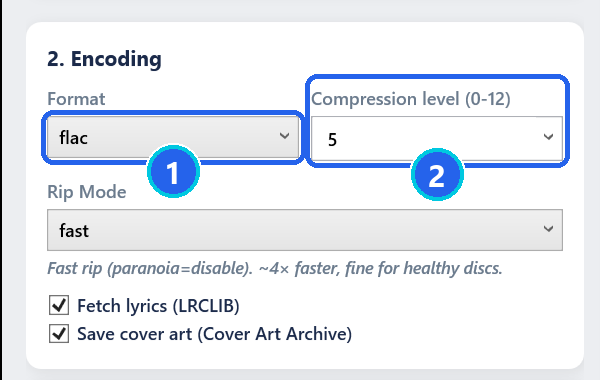
- 1Format — mp3, flac, wav, ogg or m4a.
- 2Quality — bitrate, level or quality, depending on the format.
| Format | Quality | Best for |
|---|---|---|
| mp3 | 320, 256, 192, 128 kbps, or V0 / V2 (variable) | phones and every player |
| flac | compression level 0 to 12, 5 by default — the sound is the same at every level | an exact, lossless copy of the CD, about half the size of WAV |
| wav | uncompressed | audio editing; WAV files carry no tags |
| ogg | q4 to q10, or a bitrate | small files |
| m4a | 128 to 320 kbps | the Apple ecosystem |
- Rip Mode: fast for healthy discs; accurate re-reads and corrects read errors, for scratched or old discs — slower.
- Keep Fetch lyrics and Save cover art ticked to get them.
- Tick the tracks you want and click Rip Selected Tracks.
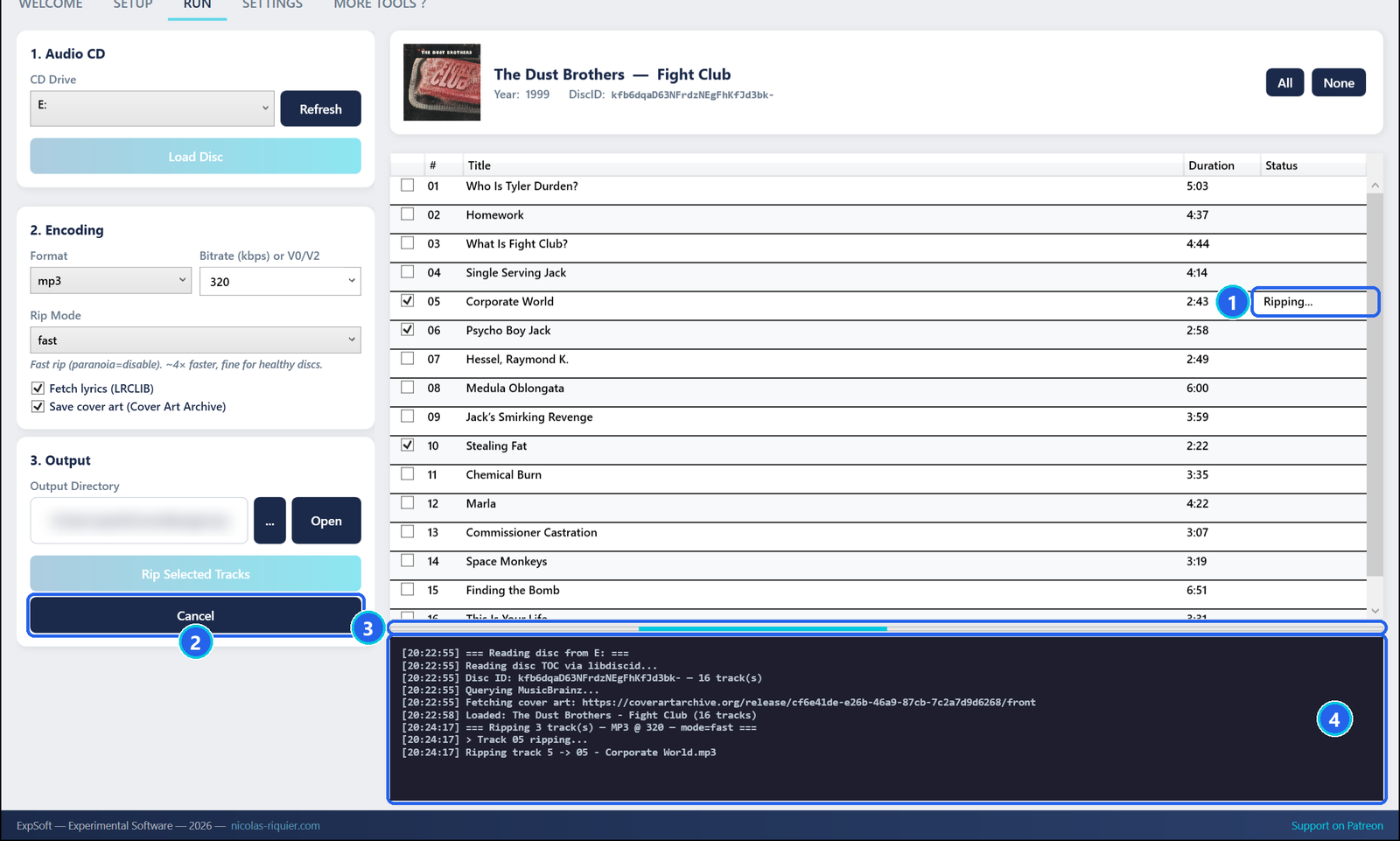
- 1Status — Ripping…, then Done or Failed, track by track.
- 2Cancel — stops the rip in progress.
- 3Progress — moves while the app works.
- 4Log — the track being ripped, the lyrics lookup, then a summary.
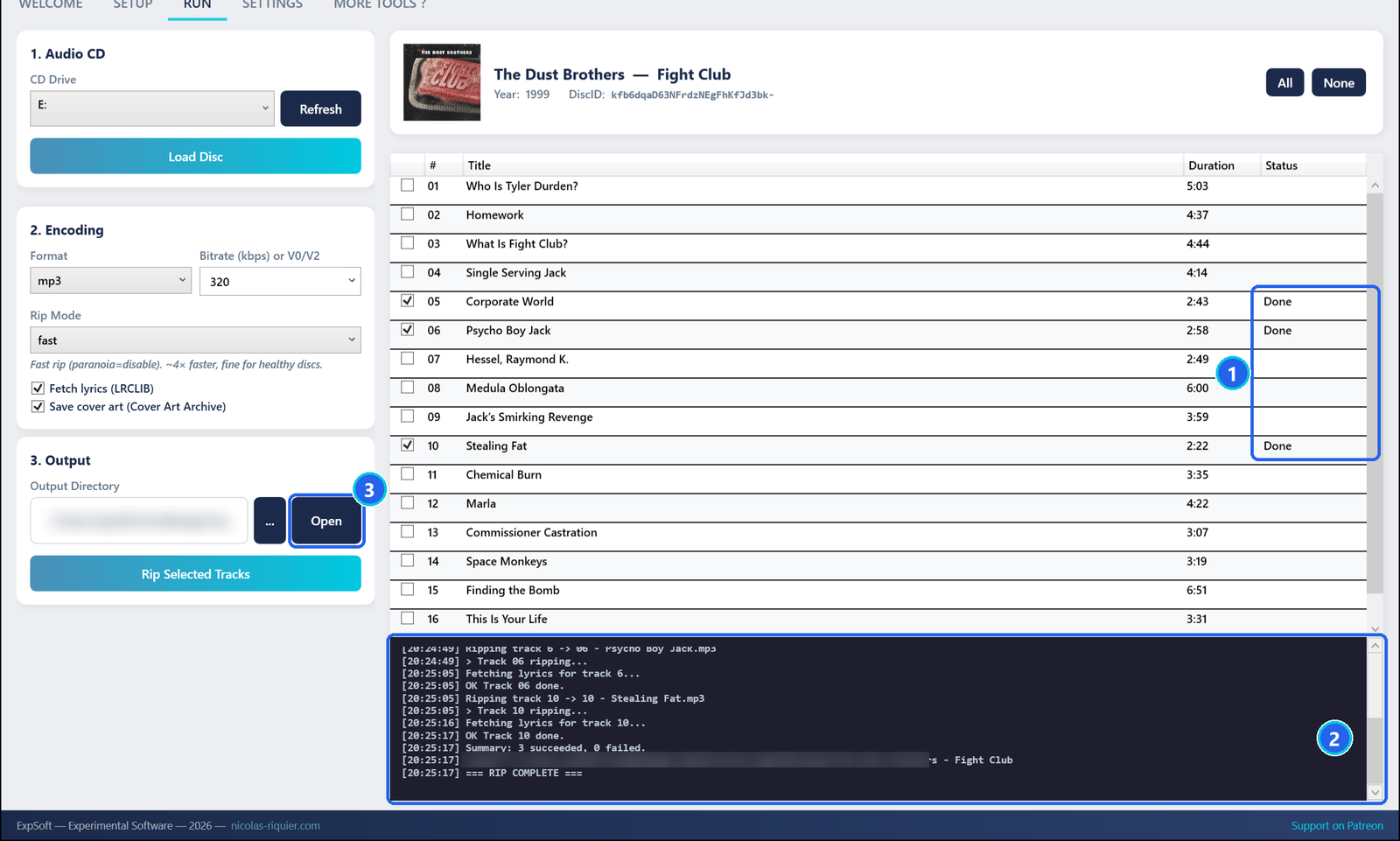
- 1Done — each ticked track is finished.
- 2Summary — how many succeeded and where the files are.
- 3Open — shows the album folder in Windows Explorer.
What you get
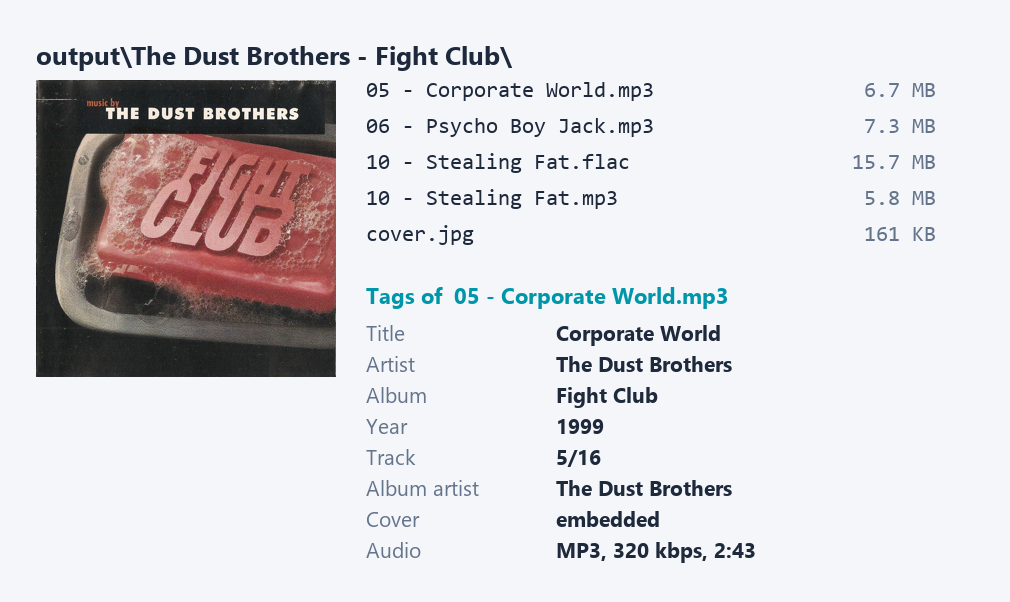
- One folder per album:
output\Artist - Album\. - One file per track, named
05 - Title.mp3, tagged with title, artist, album, year, track number and album artist — on a compilation, each track keeps its own artist. - The cover, embedded in every file (except WAV) and saved as
cover.jpg. - When they exist, synced lyrics in a
lyricssub-folder, one.lrcfile per track.
The SETTINGS tab
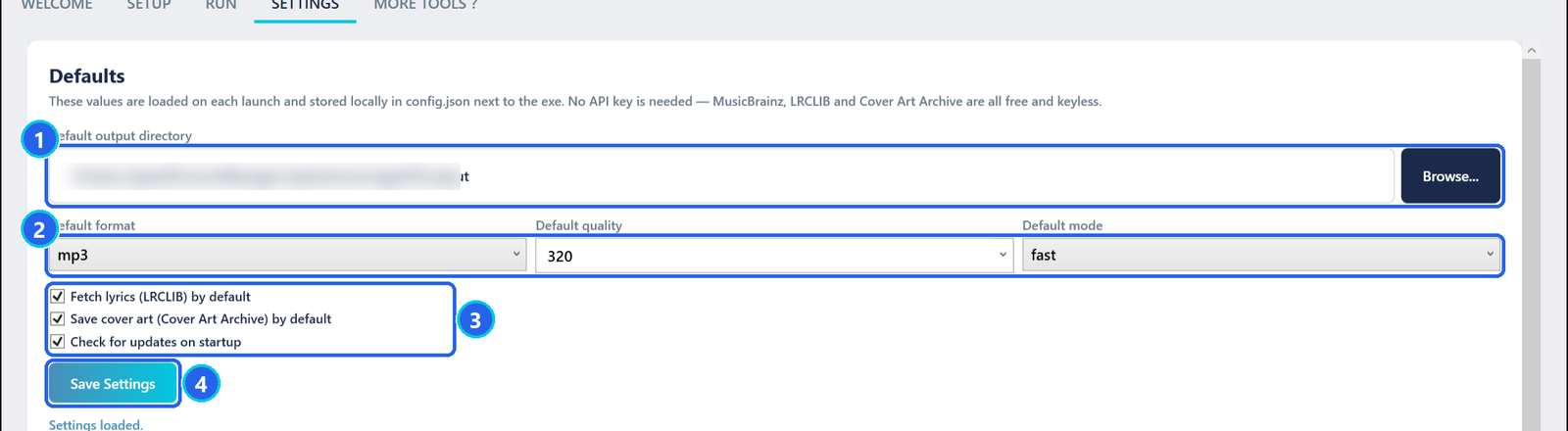
- 1Default output directory — where the album folders go; empty means the
outputfolder of the app. - 2Default format · quality · mode — what the RUN tab selects when the app starts.
- 3Check boxes — fetch lyrics, save the cover, and check for a newer version at startup (off: no check).
- 4Save Settings — writes these defaults to
config.json, next to the app.
Operations
| To… | Do this |
|---|---|
| Install the tools | SETUP → Check Prerequisites, then Install All |
| Read a disc | RUN → choose the drive → Load Disc |
| Rip only some tracks | None, then tick the tracks you want |
| Get a lossless copy | Format flac |
| Rescue a scratched disc | clean it, then Rip Mode accurate |
| Find the files | Open next to the output folder |
| Move the app | move the whole folder, then SETUP → Check Prerequisites |
| Change the defaults | SETTINGS → Save Settings |
Files the app writes
Everything stays inside the app's folder: runtime\ and python_env\ (the tools installed
by SETUP), output\ (your albums, unless you chose another folder), cache\,
logs\ (one log per installation and per session) and config.json. The MORE TOOLS ? tab keeps
its browser data in ExpSoft_Mp3_Extractor.exe.WebView2. Nothing is written elsewhere on the PC.
Troubleshooting
The app does not start.
Install the free .NET 8 Desktop Runtime from Microsoft — Windows offers the link the first time — then start the app again.
I moved the folder (or plugged the USB stick into another PC).
Open SETUP and click Check Prerequisites: the app repairs its install for the new place. Loading a disc does the same on its own.
My drive is not in the list.
Plug it in, wait for Windows to see it, then click Refresh.
The tracks are called Track 01, Track 02…
The disc was not found online (home-burned or uncatalogued). The rip still works; rename the files afterwards.
A track failed.
Clean the disc from the centre outwards and rip that track again in accurate mode.
The rip stopped on its own.
The app stops a rip when the PC has less than 2 GB of free memory left, to protect your other programs. Close a few applications and start again.
No lyrics were saved.
None exist for those tracks in the public catalogue. This is normal, especially for instrumentals and compilations.