Who it is for
NoWinUpdate is made for a production machine: a PC dedicated to long jobs — AI trainings, long batch processing — where an automatic restart in the middle of the night throws hours of work away.
Before you start
- Windows 11 Pro — the edition NoWinUpdate is built and tested on.
- The free .NET 8 Desktop Runtime. If it is missing, Windows offers to download it the first time you start the app.
- Administrator rights. Changing how Windows Update behaves needs them, so the app asks for them every time it starts.
- No installation: unzip the release into a folder of your choice and run
ExpSoft_NoWinUpdate.exe. Keep that folder: your backups live in it.
The Control tab at a glance
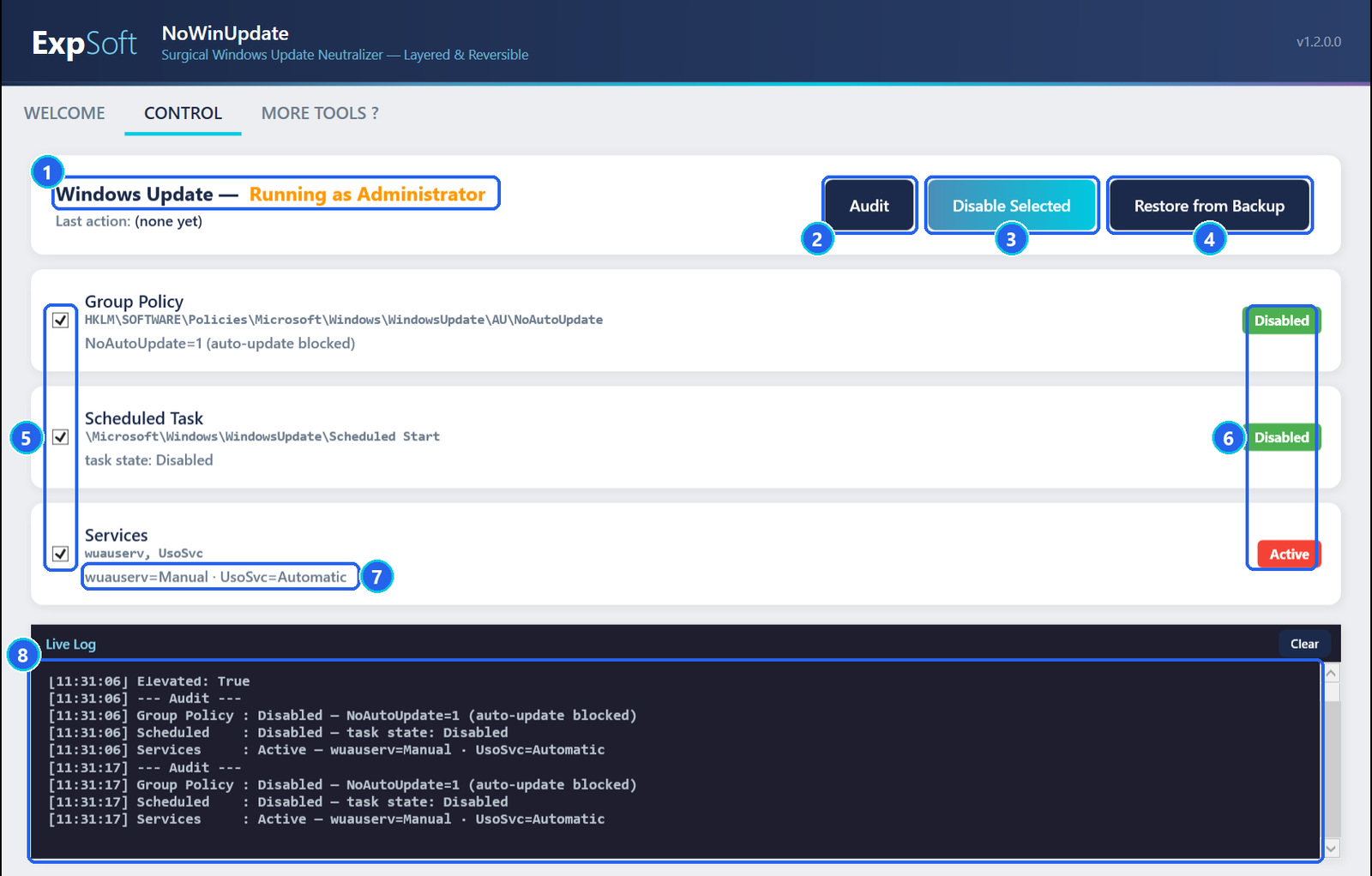
- 1Elevation — must read Running as Administrator; without it, the app can only read.
- 2Audit — reads the current state of the three layers again. Changes nothing.
- 3Disable Selected — saves a backup, then blocks Windows Update on the ticked layers.
- 4Restore from Backup — opens the list of your backups; you choose the one to put back.
- 5Layer check boxes — the layers Disable Selected acts on. All three are ticked by default.
- 6Status — Disabled (green): the layer blocks updates · Active (red): it lets them through · Mixed (yellow): one service out of two · Unknown (grey): it could not be read.
- 7Detail — the exact values behind the status — here both services are back to starting on their own.
- 8Live Log — every audit and action, with the time. Also written to
logs\latest.lognext to the app.
Start NoWinUpdate as administrator
Double-click ExpSoft_NoWinUpdate.exe and answer Yes when Windows asks whether the app may make changes. The header of the Control tab then reads Running as Administrator 1. The app runs an audit on its own as it starts.
Read the audit
Each layer shows a status on the right 6 and its exact values underneath 7. In the example above, the Group Policy and the scheduled task are disabled, but the services are Active again: Windows turned them back on by itself. That is the everyday reason updates sneak back, and why NoWinUpdate works on three layers.
Click Audit 2 whenever you want to check again. It never changes anything.
Disable Windows Update
- Keep the three layers ticked 5 — untick one only if you know why.
- Click Disable Selected 3 and confirm.
- The app first saves the current settings to a backup in
backups\, then disables each ticked layer, then audits again: the statuses turn green.
Restore updates when you want them
On the day you want your patches, click Restore from Backup 4. A window lists your backups:
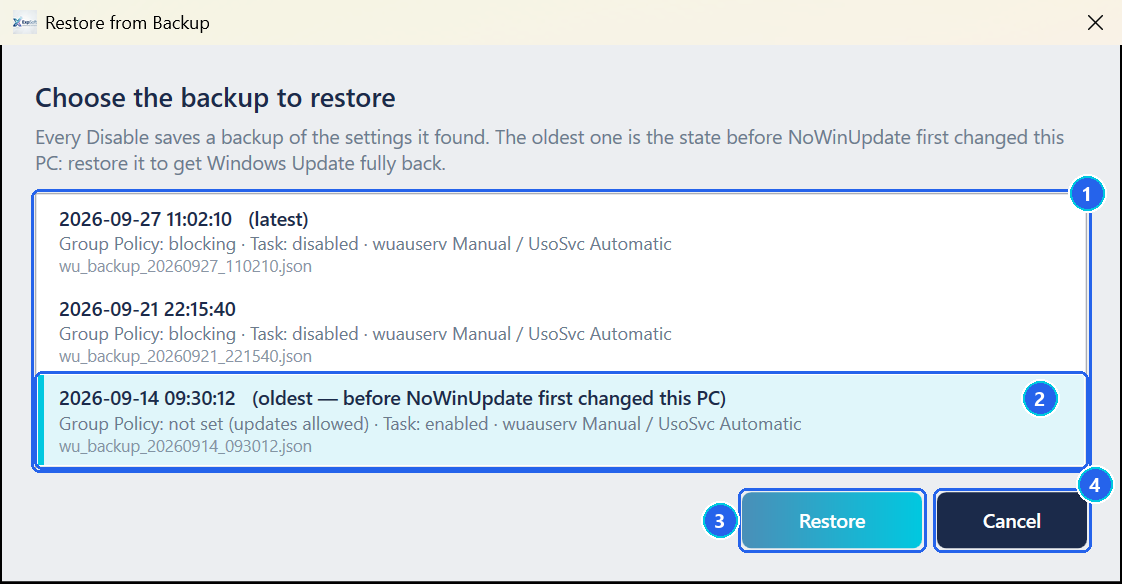
- 1Backup list — one line per backup, newest first: its date, what it would put back, and its file name.
- 2Oldest backup — selected for you. It holds the settings from before NoWinUpdate first changed this PC.
- 3Restore — puts back the settings of the selected line, then audits again. A double-click on a line does the same.
- 4Cancel — closes the list. Nothing changes, and the log says so.
Let Windows Update install what it needs, then disable again if you want.
backups\. If you clicked Disable several times, the later backups were saved while updates were already blocked, and restoring one of them keeps them blocked. To get Windows Update fully back, restore the oldest one — the list selects it for you.The three layers
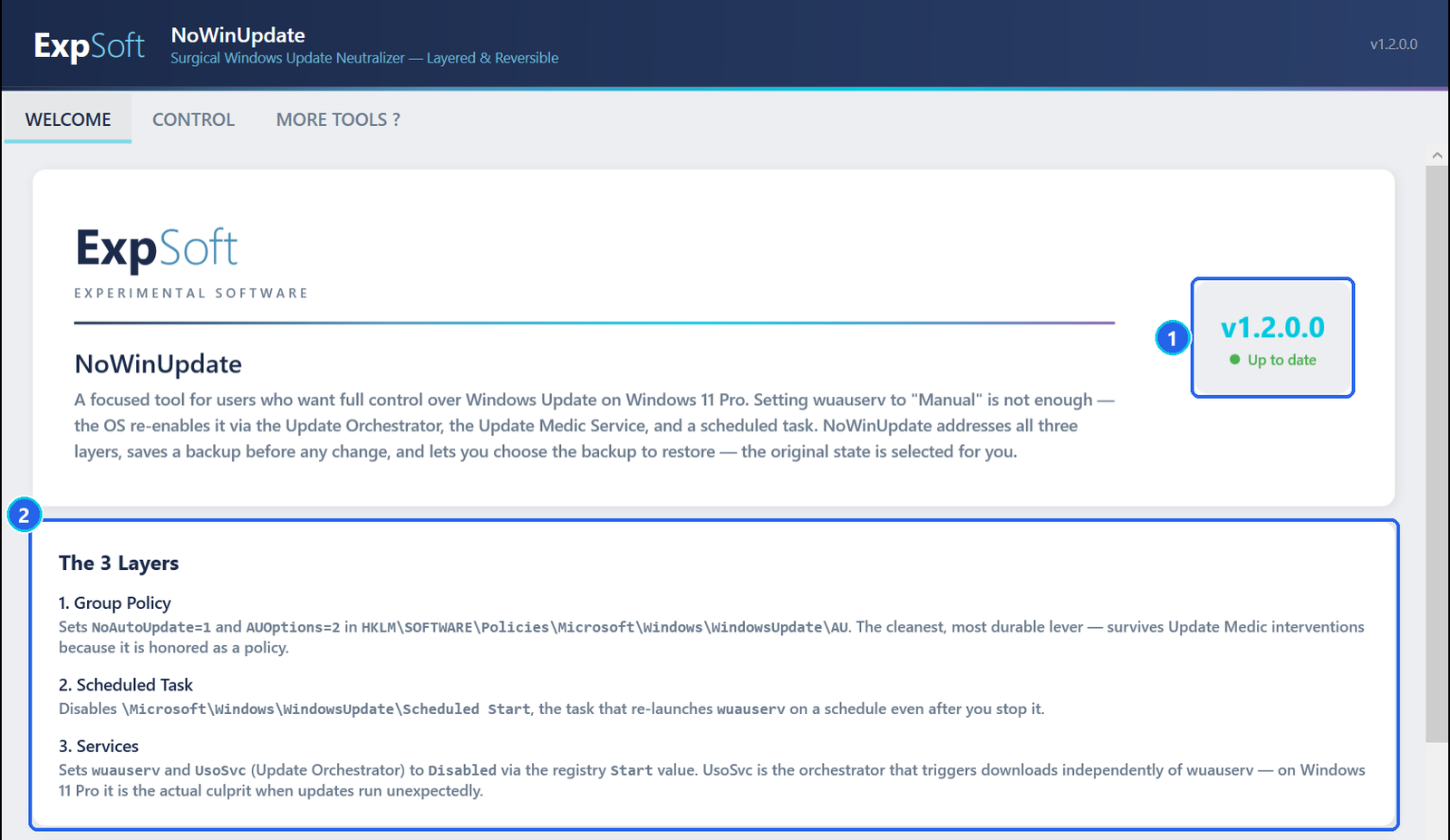
- 1Version — the installed version; it tells you when a newer one is available.
- 2The 3 layers — Group Policy, the durable lever Windows respects as an administrator's decision · Scheduled Task, the timer that restarts the update service · Services, the update service and the Update Orchestrator that starts downloads on its own.
One layer alone is not enough: the policy lasts but only blocks the automatic install, the services stop everything but Windows turns them back on, and the scheduled task restarts the service on a timer. Together, they hold.
Files the app writes
Everything stays next to ExpSoft_NoWinUpdate.exe: config.json (last action),
backups\ (one backup per Disable) and logs\ (latest.log plus one file per session).
Nothing else is written on your disk; the changes themselves are Windows settings.
Troubleshooting
The Services layer is Active again.
Windows can switch the update services back on by itself. Click Disable Selected again: the Group Policy keeps blocking automatic installs in the meantime.
The buttons do nothing and the log says "not running as Administrator".
The app was started without administrator rights. Close it and start it again, answering Yes to the Windows prompt.
Is my antivirus affected?
No. Microsoft Defender definitions update through a separate channel.
Can I undo everything?
Yes: Restore from Backup lists every backup, and the oldest one — selected for you — puts back the settings from before NoWinUpdate first changed this PC. Keep the app's folder, since the backups are in it.
I opened the backup list by mistake.
Click Cancel: nothing changes, and the log says so.