Before you start
Training your own LoRA usually starts with a chore that has nothing to do with images: setting up Python, matching PyTorch to your graphics card and driver, installing the trainer, then guessing the memory settings until a run stops crashing — an evening of it before the first step, and the same again on the next PC. ExpSoft OneTrainer does all of that in one click, inside its own folder, and gives you profiles already set for a 16 GB card. What is left is the part that matters: your images, their captions, and watching your LoRA learn.
ExpSoft OneTrainer is free.
- Windows 10 or 11, 64-bit, and the free .NET 8 Desktop Runtime. If it is missing, Windows offers to download it the first time you start the app.
- An NVIDIA card (RTX 20 series or newer). Take the 50xx package for an RTX 50 card, the 40xx package for the older ones.
- System memory: 64 GB for Krea 2 and Ideogram 4 — Ideogram 4 alone takes about 44 GB while it loads.
- Disk space: about 5 GB for the app, plus the models you download — 33 GB for Krea 2 Raw, 50 GB for Ideogram 4 — and about 3 GB per training for its checkpoints and backups.
- A Hugging Face account and token for the gated models, such as Krea 2 (Step 2).
The window at a glance

- 1The tabs — Setup installs everything, Run opens OneTrainer and its tools, Samples shows the images your trainings render, Settings holds your token and the model downloads, More Tools ? shows the other ExpSoft tools.
- 2Version badge — says whether a newer version is available.
- 3Quick Start — this guide in three lines.
Two windows work together: this one prepares everything, and the OneTrainer window — opened from RUN — is where you set up and start a training.
Install
Open the SETUP tab and click Install All. It happens once.
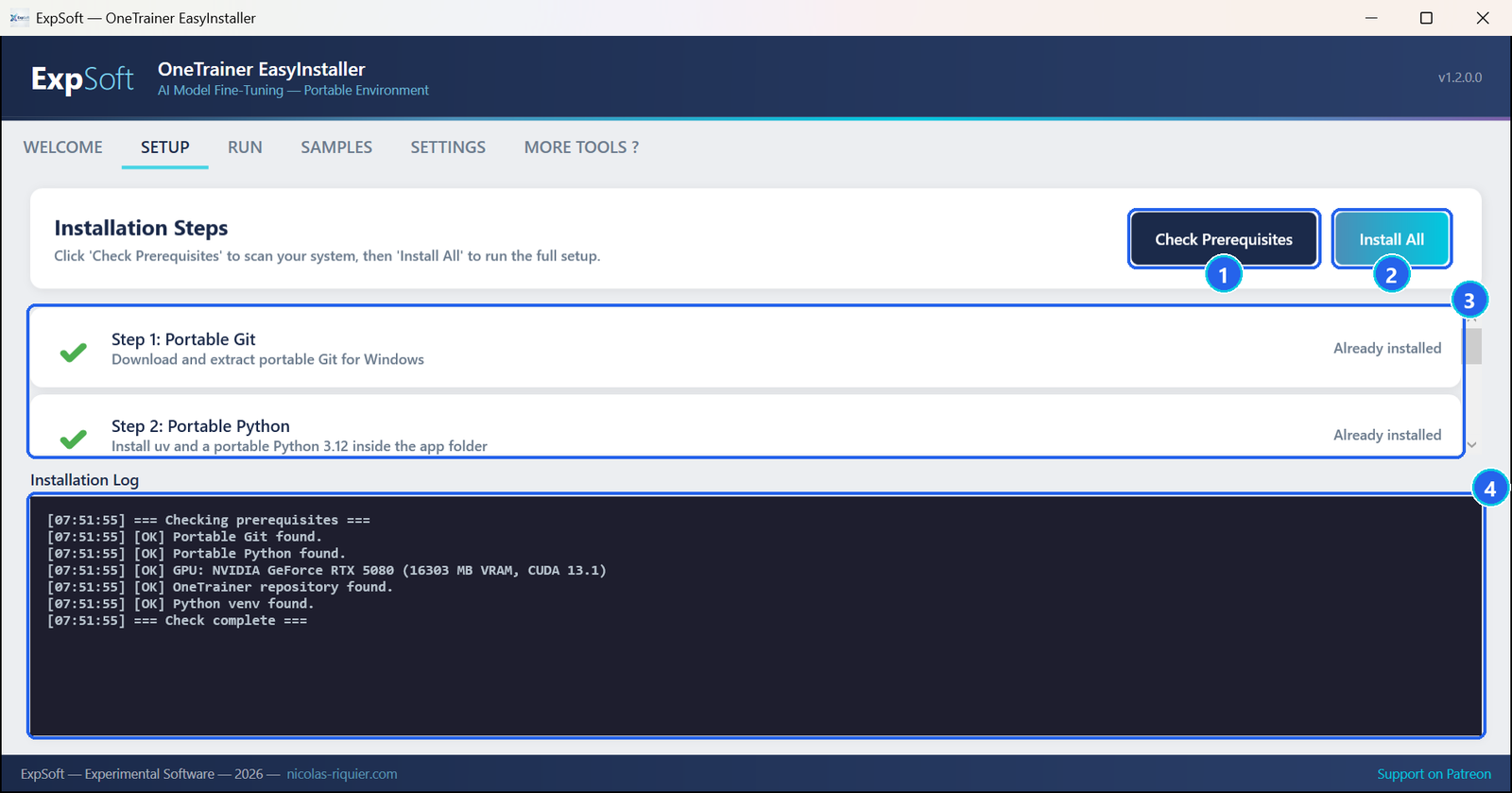
- 1Check Prerequisites — looks at what is already installed and at your card, and ticks what is there. It installs nothing.
- 2Install All — five steps in order: a portable Git, a portable Python, the card check, OneTrainer itself (a version validated by ExpSoft, so an update elsewhere never breaks your install) and its Python libraries with the PyTorch build that fits your card. A step already done is skipped.
- 3The steps — a green tick means done.
- 4The log — every command and its result, also saved in
logs\.
On our test PC, with a fast connection, the whole setup took about 3 minutes and uses about 5 GB.
Your token and a model
Open SETTINGS. Some models are gated: you accept their licence on their Hugging Face page, then download them with your own token.
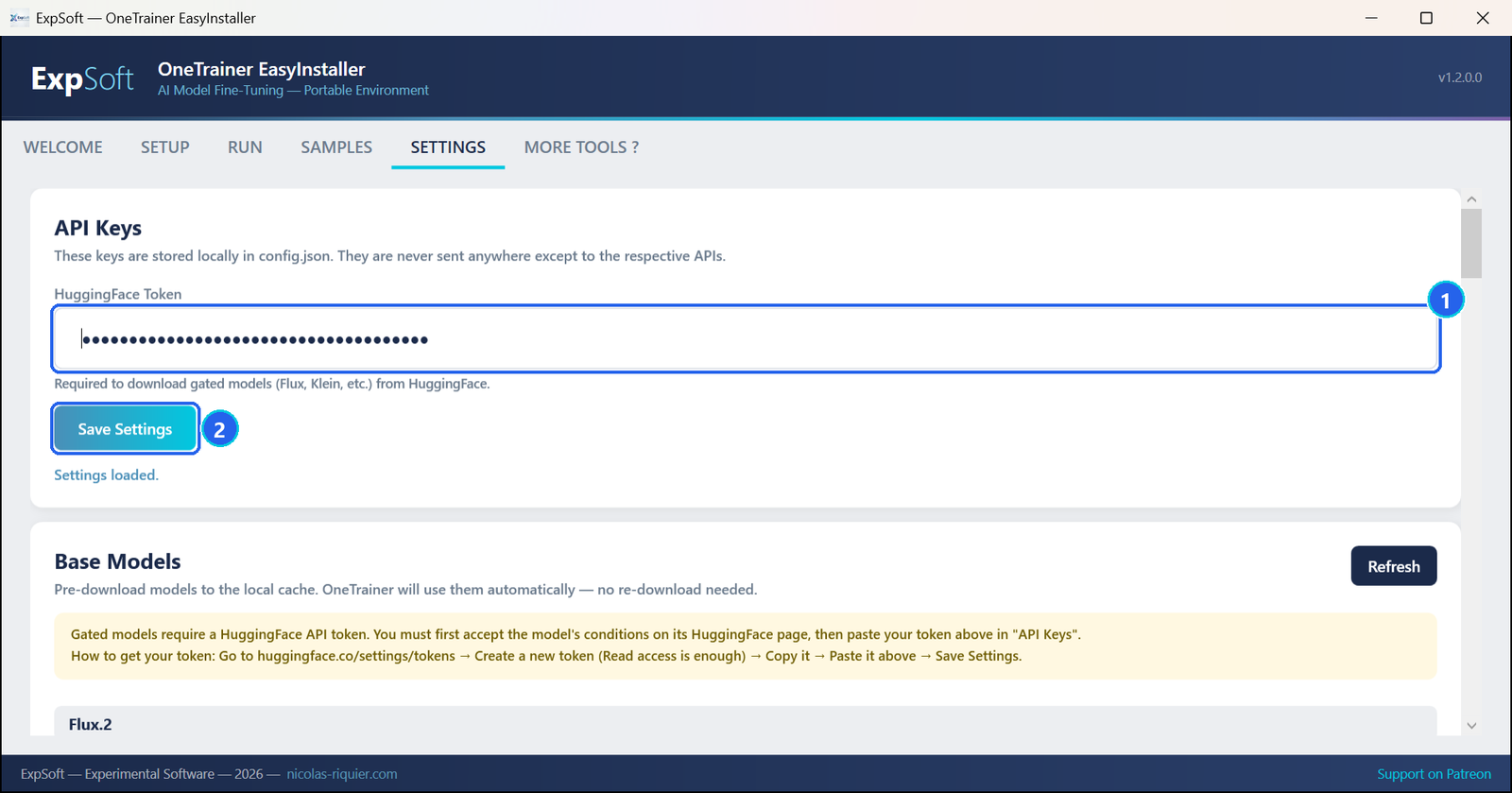
- 1HuggingFace Token — paste a token with Read access (huggingface.co › Settings › Access Tokens). The field hides it, so it never shows on screen or in a screenshot.
- 2Save Settings — keeps it in the app's
config.json, on your PC. It is only ever sent to Hugging Face.
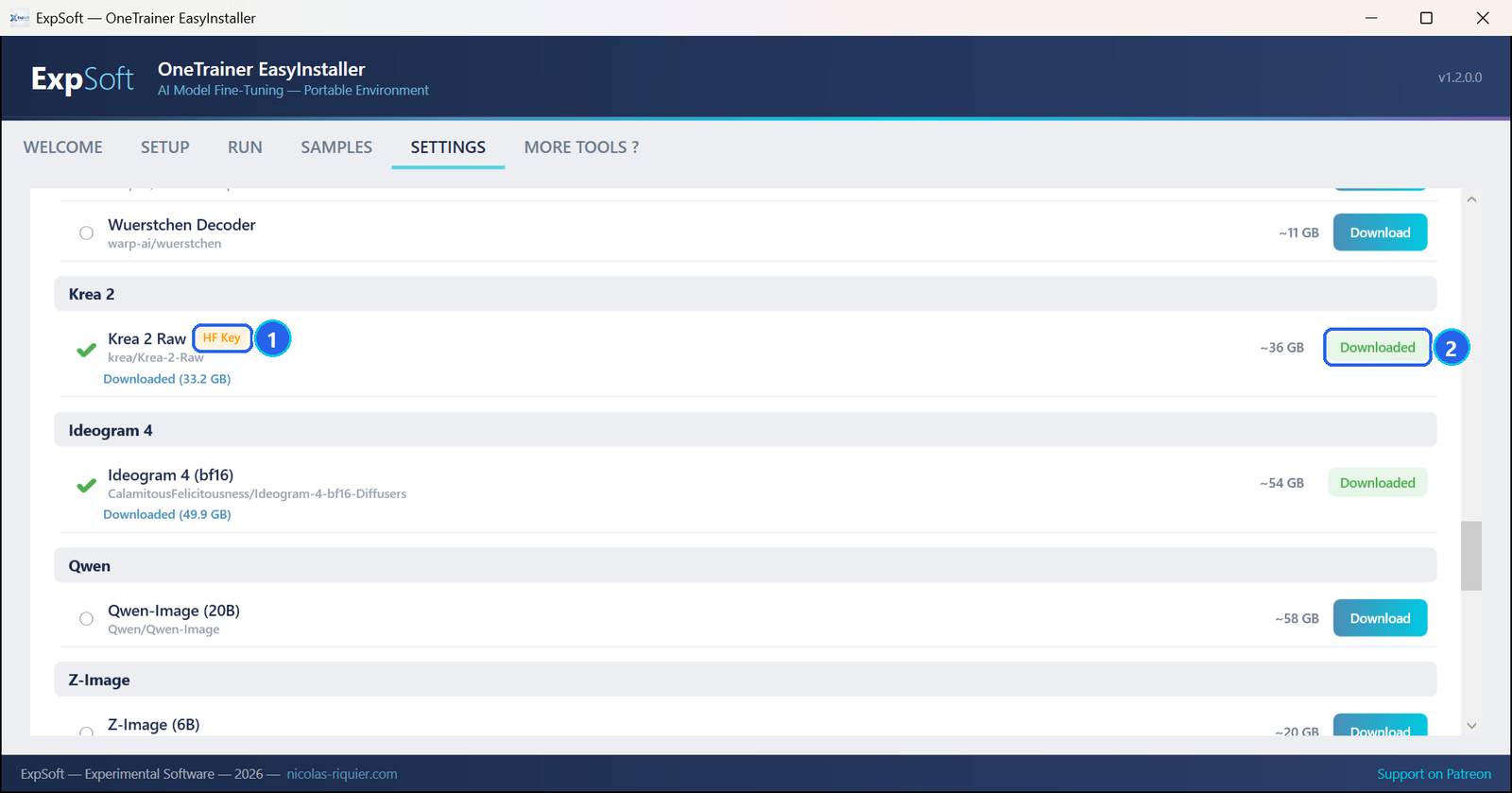
- 1HF Key — a gated model: open its page on Hugging Face, accept its licence with your account, then come back here.
- 2Download — fetches the model into
models\. When it is done the row turns green and shows the size on disk.
The list holds 31 models, from Stable Diffusion 1.5 to Flux.2 and Qwen-Image. The ExpSoft profiles are built for three of them: Flux.2 Klein (9B and 4B), Krea 2 Raw — the version of Krea 2 made for training — and Ideogram 4.
Your images and their captions
Put your images in a folder under datasets\, each with a .txt file of the same name that describes it: photo-01.png + photo-01.txt. The captions decide what the LoRA learns, so they are worth ten minutes.
Below, the two captions of one of the 20 photos of our test set: a close-up taken outdoors, in front of a teal wall and green leaves.
- A trigger word and a class — a rare word for your subject, followed by what it is: wodk, a man. You write the same words in your prompts later to call the LoRA.
- Describe what changes, never what stays — framing, pose, expression, clothes, background, light. Do not describe the face: what you never describe sticks to the trigger word.
- Variety over quantity — our test used twenty photos taken on different days, in different clothes, places and angles.
For Krea 2, write plain sentences — it reads long, natural descriptions:
A close-up photograph of wodk, a man, his face filling the frame with the top of his head cropped. He tilts his head slightly and gives a soft closed-mouth smile, looking straight into the camera. His hair is messy and pushed back. A white shirt shows at the bottom right. Behind him, a teal painted wall on the left and dense green oleander leaves on the right, softly out of focus. Natural daylight outdoors, casual snapshot.For Ideogram 4, the caption is a JSON description — the only form this model was trained on. It gives an overall line, the style, and each element of the picture with its box (top, left, bottom, right, from 0 to 1000) and its main colours:
{"high_level_description":"A close-up outdoor portrait of wodk, a man, smiling softly at the camera with his head slightly tilted.","style_description":{"aesthetics":"casual, warm, candid","lighting":"soft natural daylight, even and diffuse","photo":"extreme close-up, eye-level, shallow depth of field, smartphone snapshot","medium":"photograph","color_palette":["#8D6656","#AD9388","#A77F71","#554533","#392C1F"]},"compositional_deconstruction":{"background":"A teal painted wall on the left and dense green oleander foliage on the right, blurred.","elements":[{"type":"obj","bbox":[0,40,1000,960],"desc":"wodk, a man, his face filling most of the frame, head slightly tilted, soft closed-mouth smile, looking into the camera, messy pushed-back hair, a white shirt collar at the bottom right.","color_palette":["#4A392B","#9C7A6C","#B19286"]}]}}Pick a profile and train
In RUN, click Launch OneTrainer. The OneTrainer window opens next to the app; closing it brings you back.
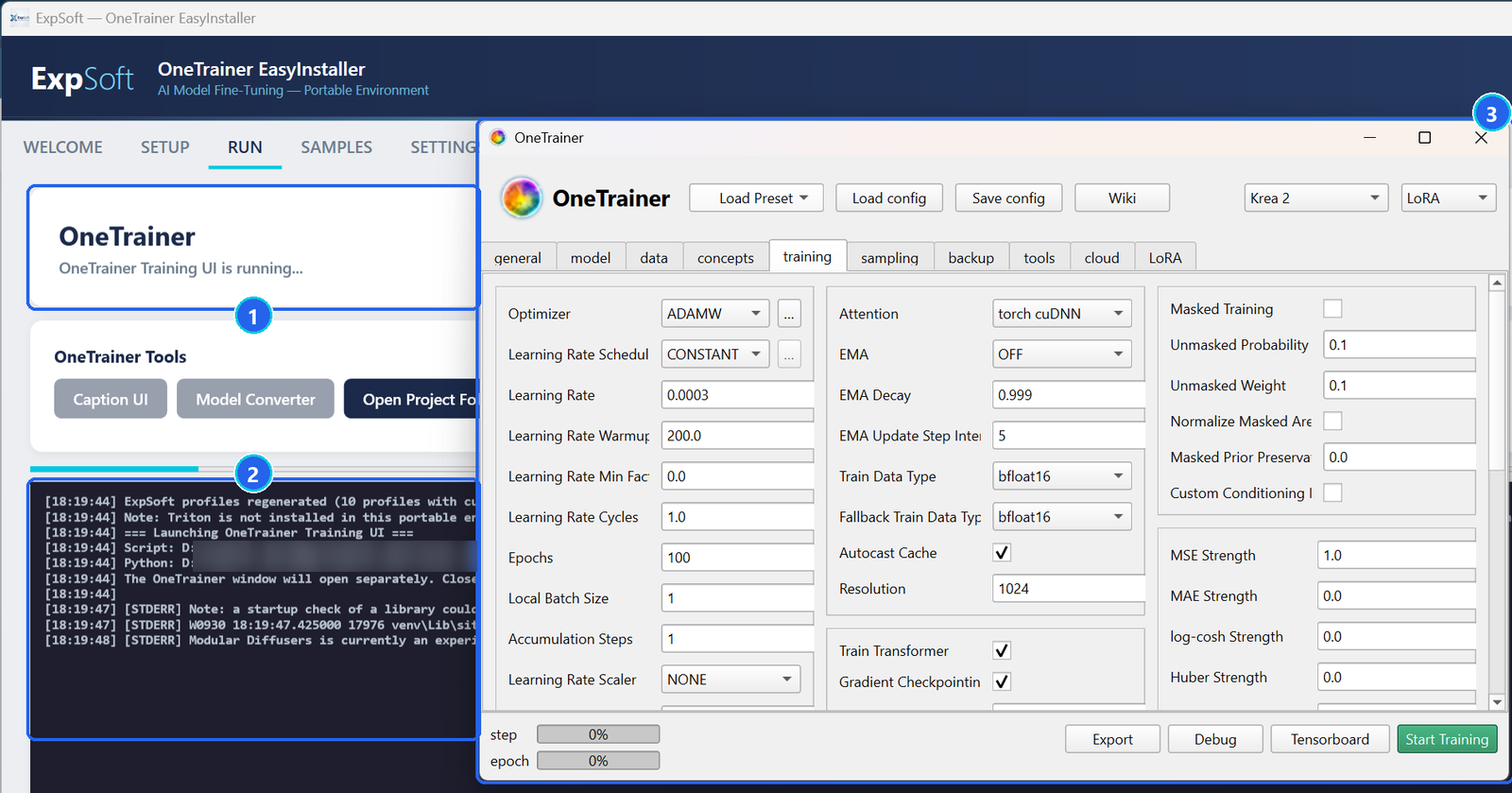
- 1Launch OneTrainer (on the right of this card, behind the OneTrainer window here) — refreshes the ExpSoft profiles with the paths of your folder, then opens OneTrainer; the card then says it is running.
- 2The log — what OneTrainer prints. A few notes at start-up are normal (see Troubleshooting).
- 3The OneTrainer window — the model and training type at the top right, the settings in its tabs, Start Training at the bottom right.
Then, in the OneTrainer window:
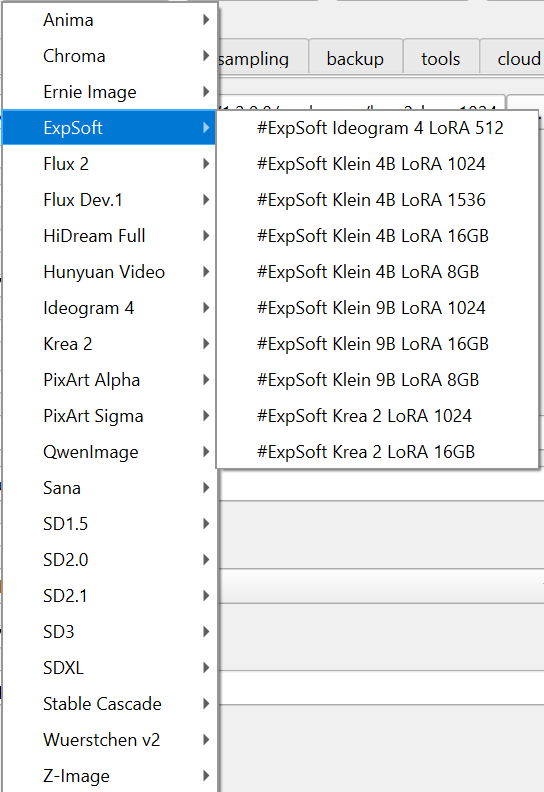
- 1Load Preset › ExpSoft — pick the profile of your model and card (see the profiles). It sets the model, the memory settings and the folders in one click.
- concepts — the ready-made concept reads every folder under
datasets\; point it at one folder to train on that set only. The captions are read from the.txtfiles next to the images. - sampling — add two or three prompts with your trigger word, for example A head-and-shoulders portrait photograph of wodk, a man, wearing a navy blue suit…, at the size you train at. Set a fixed seed to compare the rounds.
- training — the number of Epochs. The profiles keep OneTrainer's 100; our test used 60 epochs for its 20 images (1,200 steps).

- 1Epochs — how many times the training goes through your images.
- 2Local Batch Size and Resolution — images per step and their size. Both weigh on the video memory.
- 3Layer Offload Fraction and Offload Activations — the share of the model kept in system memory instead of the card (Memory settings).
Click Start Training. The step and epoch bars at the bottom of the OneTrainer window show the progress.
Watch it learn
Every image OneTrainer renders during a training lands in the app's SAMPLES tab, newest first — no need to dig through folders.
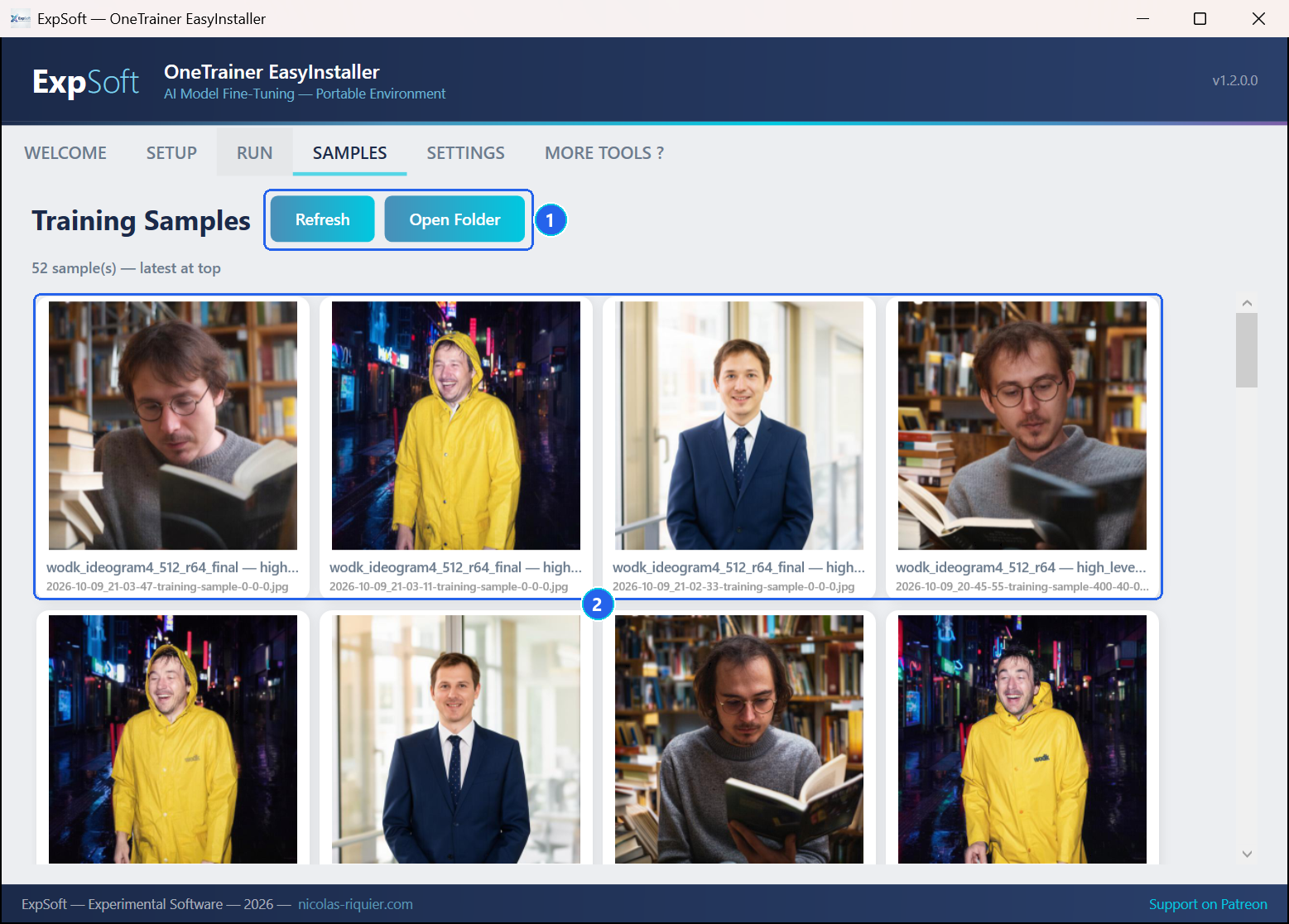
- 1Refresh / Open Folder — reload the list, or open the samples folder of the latest training.
- 2The images — labelled with the training and the prompt. Click one to see it full size.
Your LoRA
At the end of a training, the LoRA is saved in output\ — output\krea2_lora_1024.safetensors with the Krea 2 LoRA 1024 profile. The in-between checkpoints stay in workspace\<profile>\save\: if the last one looks overcooked, an earlier one is often the better pick.
Load the LoRA in the image tool you use with that model, write your trigger word in the prompt, and start around full strength.
What we got on our test PC
Krea 2
Twenty photos of one person, captioned as in Step 3, trained at 1024 pixels for 60 epochs (1,200 steps) on an RTX 5080 with 16 GB. Each row is a sample round, same prompts and seeds.

- Before training the model does not know the trigger word — it even prints it on the book cover as text.
- At 400 steps the faces start to move toward the person; at 800 the same face comes back in all three scenes; at 1,200 the word is no longer printed anywhere. Suits, raincoat, glasses, light and framing keep following the prompts.
- Watch the other people. In the rain scene, the second man starts to share the face at the end: with a set of one person, the identity can spill over. An earlier checkpoint or a lower LoRA strength limits it.
Ideogram 4
The same twenty photos, with JSON captions, trained with the Ideogram 4 LoRA 512 profile: 512 pixels, 60 epochs (600 steps of two images) in about 34 minutes on the same card.
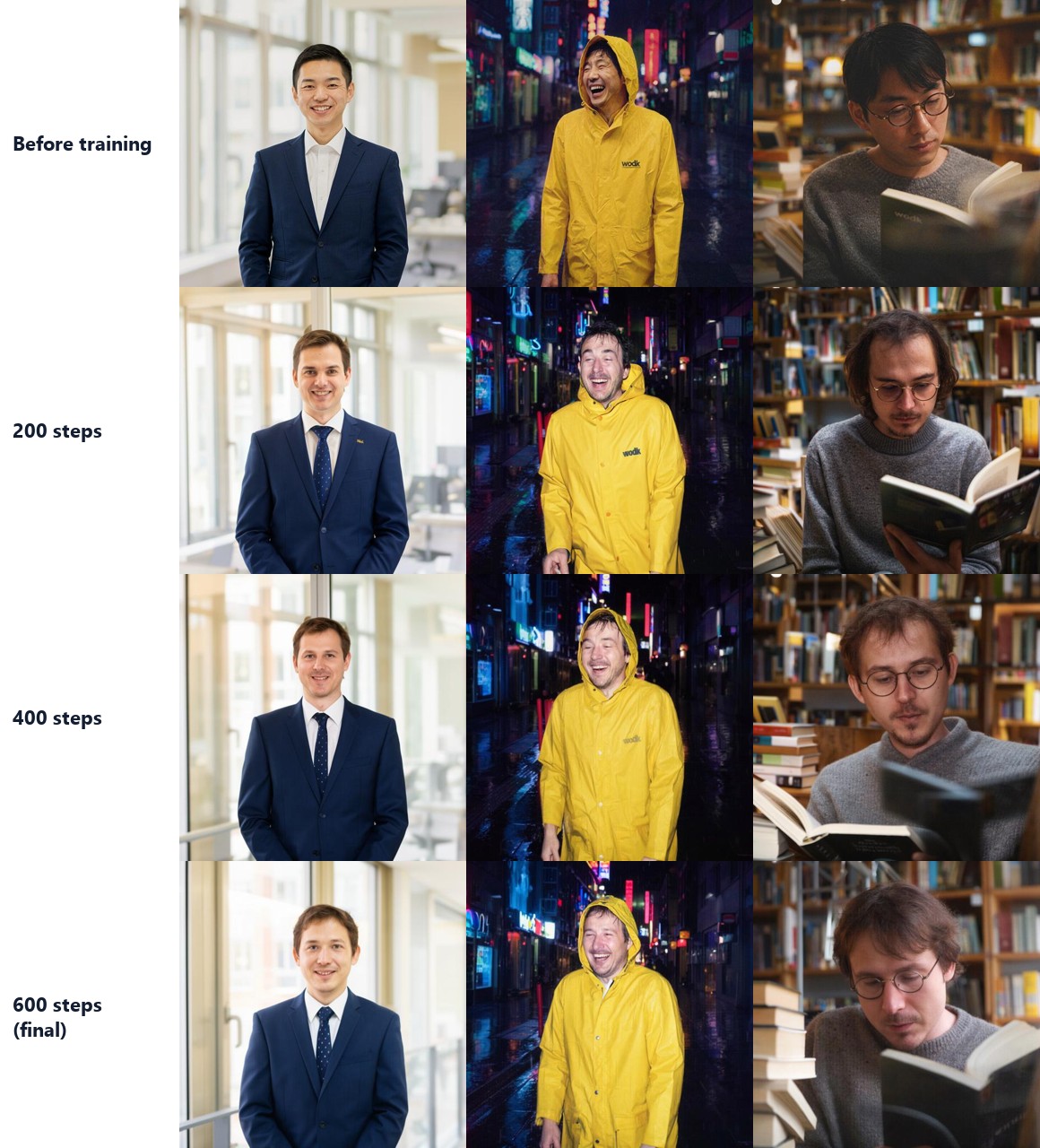
- Before training the model draws another man, and prints the trigger word on the raincoat and the book.
- At 200 steps the face has changed in all three scenes; at 400 and 600 it comes closer to the person — the hair, the beard, the shape of the face — while the clothes, the light and the framing keep following the prompts.
- Why this profile. OneTrainer's own Ideogram 4 preset learns gently: on our test it stayed stable, but after 600 steps the face had not changed. The ExpSoft profile uses a learning rate of 1e-4 with a rank of 64. At 1024 pixels, Ideogram 4 training drifted on our test PC, so the profile stays at 512.
The ExpSoft profiles
Ten profiles, in the ExpSoft group of Load Preset. Each one is OneTrainer's own preset for the model, with memory settings for a 16 GB card, compilation off and the folders of your install. The Krea 2 and Ideogram 4 speeds below were measured on our test PC.
| Profile | Settings | For |
|---|---|---|
| Krea 2 LoRA 1024 | 1024 px, batch 1, 90 % of the model in system memory | The best detail on 16 GB — about 5 s per step on our test PC |
| Krea 2 LoRA 16GB | 512 px, batch 2, 30 % offload | Quicker tests — about 2.5 s per step |
| Ideogram 4 LoRA 512 | 512 px, batch 2, learning rate 1e-4, rank 64, 50 % offload, 60 epochs | About 3 s per step — twenty photos in about 34 minutes; 64 GB of system memory |
| Klein 9B LoRA 16GB / 8GB / 1024 | 512 px batch 2 · 512 px batch 1 with 70 % offload · 1024 px batch 1 with 50 % offload | Flux.2 Klein 9B on 16 GB, on 8 GB, or at 1024 px |
| Klein 4B LoRA 16GB / 8GB / 1024 / 1536 | 512 px batch 4 · 512 px batch 2 with 50 % offload · 1024 px batch 2 with 30 % offload · 1536 px batch 1 with 60 % offload | Flux.2 Klein 4B, the lighter model |
The profiles are rewritten each time you click Launch OneTrainer, so they always point at your folder. To keep your own changes, click Save config in OneTrainer to save them to a file, and Load config to bring them back.
Memory settings
The profiles are set for 16 GB of video memory and 64 GB of system memory. With less, or at a higher resolution, the training tab of OneTrainer has the settings that matter:
- Layer Offload Fraction — the share of the model kept in system memory and streamed to the card when needed. Higher saves video memory and costs a little speed. On our 16 GB card, Krea 2 at 1024 pixels with 30 % ran at 42 seconds a step because the card overflowed; with 90 % it ran at 5 seconds.
- Offload Activations — keeps the in-between results of each step in system memory. Tick it at 1024 pixels on 16 GB.
- Resolution and Local Batch Size — lower them for a quick first run.
A sign that the card is overflowing: the steps get slower and slower during the first minutes instead of settling. Raise the offload and start again.
The app also watches the system memory while OneTrainer runs, and stops it if less than 2 GB is left, before Windows freezes. Close other large programs before training Ideogram 4.
Files the app writes
Everything the app installs and writes stays in its folder.
datasets\— your images and captions;output\— your finished LoRAs.workspace\<profile>\— per training:samples\(the sample images),save\(checkpoints),backup\(a full backup of the training every 30 minutes by default — about 650 MB each with Krea 2; delete the old ones when you are done).models\— the downloaded models;cache\— the image cache of your trainings and the download caches.runtime\— the portable Git and Python;project\— OneTrainer, its libraries (project\venv\), the profiles (training_presets\ExpSoft\) and your concepts and sample prompts.logs\— one log per setup and per launch;config.json— your settings and token.
Troubleshooting
Windows asks me to install .NET when I start the app
The app needs the free .NET 8 Desktop Runtime. Accept the download Windows offers, install it, then start the app again.
A download stops with "401" or "gated"
The model is gated. Accept its licence on its Hugging Face page with the account of your token, check the token in SETTINGS, click Save Settings, then download again.
The steps get slower and slower, or "out of memory"
The card is overflowing. Raise Layer Offload Fraction, tick Offload Activations, or lower the resolution or the batch size (Memory settings). Close other programs that use the graphics card.
The training stops with "Available RAM critically low"
The app stopped OneTrainer before the system ran out of memory. Close other programs and start again; Ideogram 4 needs 64 GB of system memory.
"TritonMissing" with a preset that is not an ExpSoft one
Triton is not part of this portable install. In the model tab of OneTrainer, untick Compile transformer blocks. The ExpSoft profiles already have it off.
Notes in the RUN log when OneTrainer starts
Lines such as triton not found, Modular Diffusers is currently an experimental feature or a startup check of a library could not read a Windows message are normal and change nothing to your training.
The SAMPLES tab is empty
Add sample prompts in the sampling tab of OneTrainer before you start, and check the sampling interval. Click Refresh if images were rendered while the tab was closed.
"Smart App Control blocked a Python extension"
A Windows policy of your PC, not a broken install: run the same step once more.
The More Tools tab is blank
It needs the WebView2 runtime and an internet connection.
Something went wrong. What should I send?
The logs\ folder has one file per setup and per launch. Send the one of the run that failed to ExpSoft, with a word on what you clicked.