What it is for
Preparing a training set or an image collection always starts with the same chore: dozens or hundreds of pictures of every shape — portraits, landscapes, wide banners, phone shots — to cut one by one to the same format, with the subject well placed each time.
SmartCropper shows the whole folder at once, one card per image, each with its own crop zone. You place the zones with the mouse, copy one zone to the rest of a series in one click, fix the exceptions, and save everything in one go — as separate files or as one ZIP, at the full resolution of your originals.
Before you start
- Windows, 64-bit, with the free .NET 8 Desktop Runtime. If it is missing, Windows offers to download it the first time you start the app.
- No installation: unzip the release into a folder of your choice and run
ExpSoft_SmartCropper.exe. - SmartCropper comes with the ExpSoft subscription on Patreon, from The Power User tier (Tier 2) and above.
- No GPU and no internet connection needed to crop. The app only goes online to check for a newer version and to show the MORE TOOLS ? tab.
- Images it reads: JPG, PNG, BMP, GIF, TIFF and WEBP. Crops are saved as PNG or JPEG.
The window at a glance
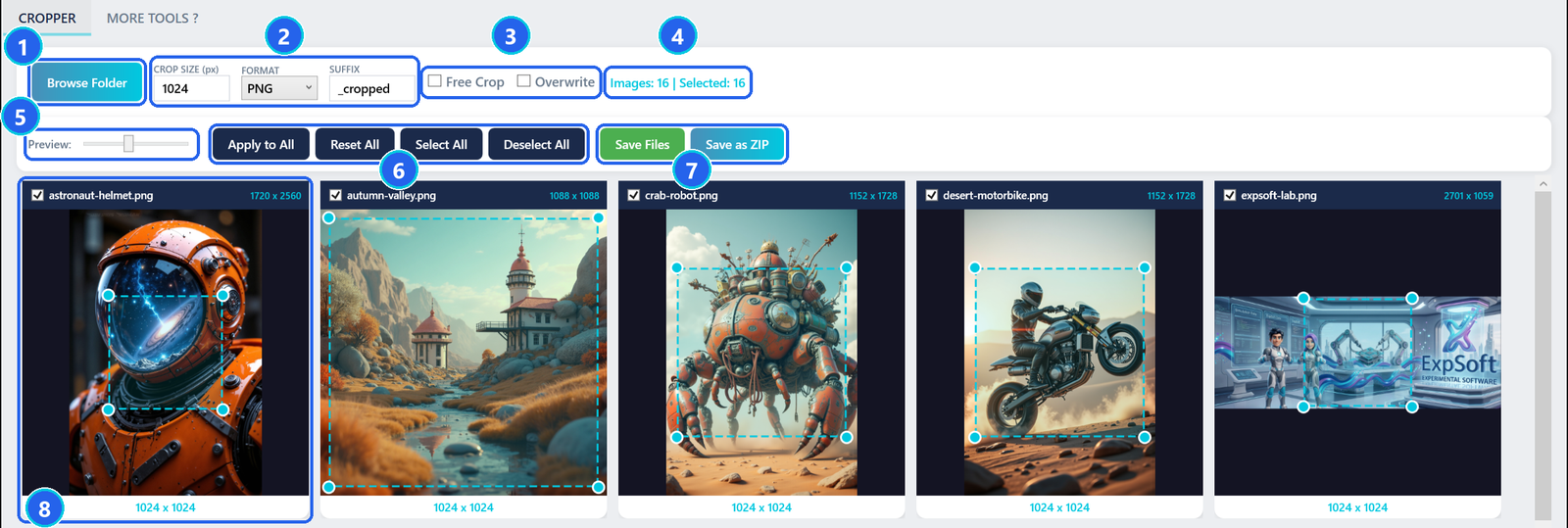
- 1Browse Folder — loads the images of a folder (its sub-folders are not scanned). Dropping a folder, or a few images, on the window does the same.
- 2CROP SIZE · FORMAT · SUFFIX — CROP SIZE: size of the squares in pixels, 1024 by default. FORMAT: PNG or JPEG — JPEG adds a QUALITY % box (92 by default). SUFFIX: added to each file name,
_croppedby default. - 3Free Crop · Overwrite — Free Crop: free rectangles instead of squares. Overwrite: replace files that already have the same name instead of numbering the new ones.
- 4Status — how many images are loaded and how many are ticked. Only ticked images are saved.
- 5Preview — size of the cards on screen. Display only: the zones do not change.
- 6Apply to All · Reset All · Select All · Deselect All — the batch helpers used in Step 2.
- 7Save Files · Save as ZIP — write the ticked crops (Step 3).
- 8A card — one per image — see below.
One card
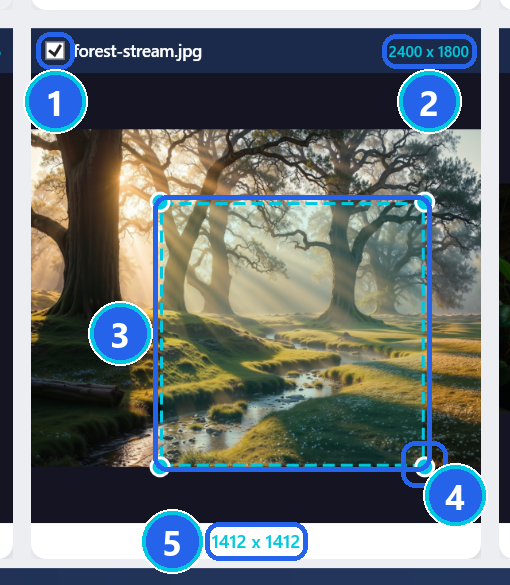
- 1Tick box — ticked: the image is saved, and Apply to All may change its zone. Unticked: it is skipped and shown faded.
- 2Original size — width × height of the image file, in pixels.
- 3Crop zone — what will be kept. Drag inside it to move it; it never goes past the edges of the image.
- 4Corner handle — drag any of the four corners to resize the zone. In square mode it stays a square.
- 5Crop size — the exact size, in pixels, of the file you will get.
Load your images
- Click Browse Folder 1 and choose the folder — or drop the folder on the window.
- Every image appears as a card with a centred square of CROP SIZE pixels. When an image is smaller than that, you get the largest square that fits: an 800 × 600 photo gets a 600 × 600 square.
- Want another size? Type it in CROP SIZE 2 and leave the box: every square is resized around its centre.
Place each zone
Drag inside a zone to move it onto the subject, drag a corner to make it bigger or smaller, and untick the images you do not want.
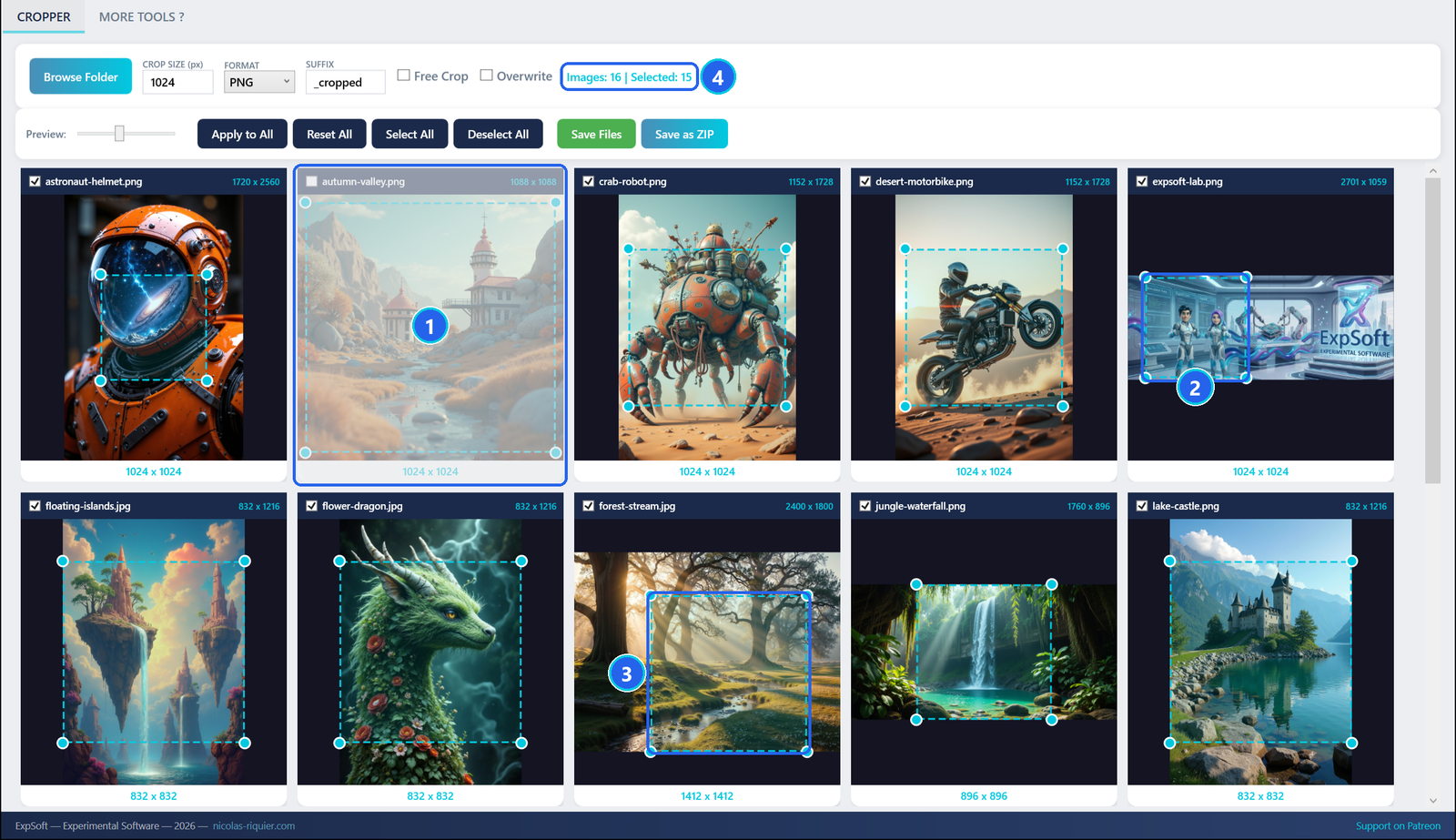
- 1Unticked image — faded and skipped: it will not be saved.
- 2Zone moved — dragged onto the two characters on the left of this wide banner.
- 3Zone enlarged — dragged by a corner: this crop will be a 1412 × 1412 file.
- 4Status — updates as you tick and untick: 16 images, 15 to save.
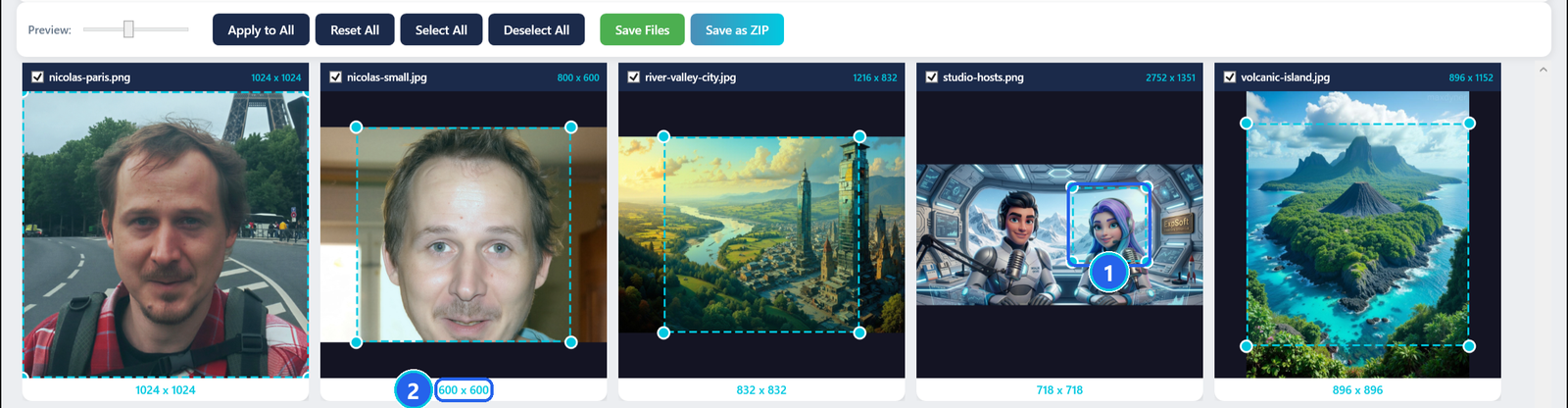
- 1Two subjects in one picture — you choose: here the zone was made smaller (718 × 718) and moved onto one of the two hosts.
- 2A small image — 800 × 600: the largest square that fits is 600 × 600.
Save time on a series: Apply to All
When many images share the same framing — the same camera, the same generator, the same size — place the zone of the first ticked image, then click Apply to All. Its position and size, in pixels, are copied to every other ticked image. Then fix only the exceptions.
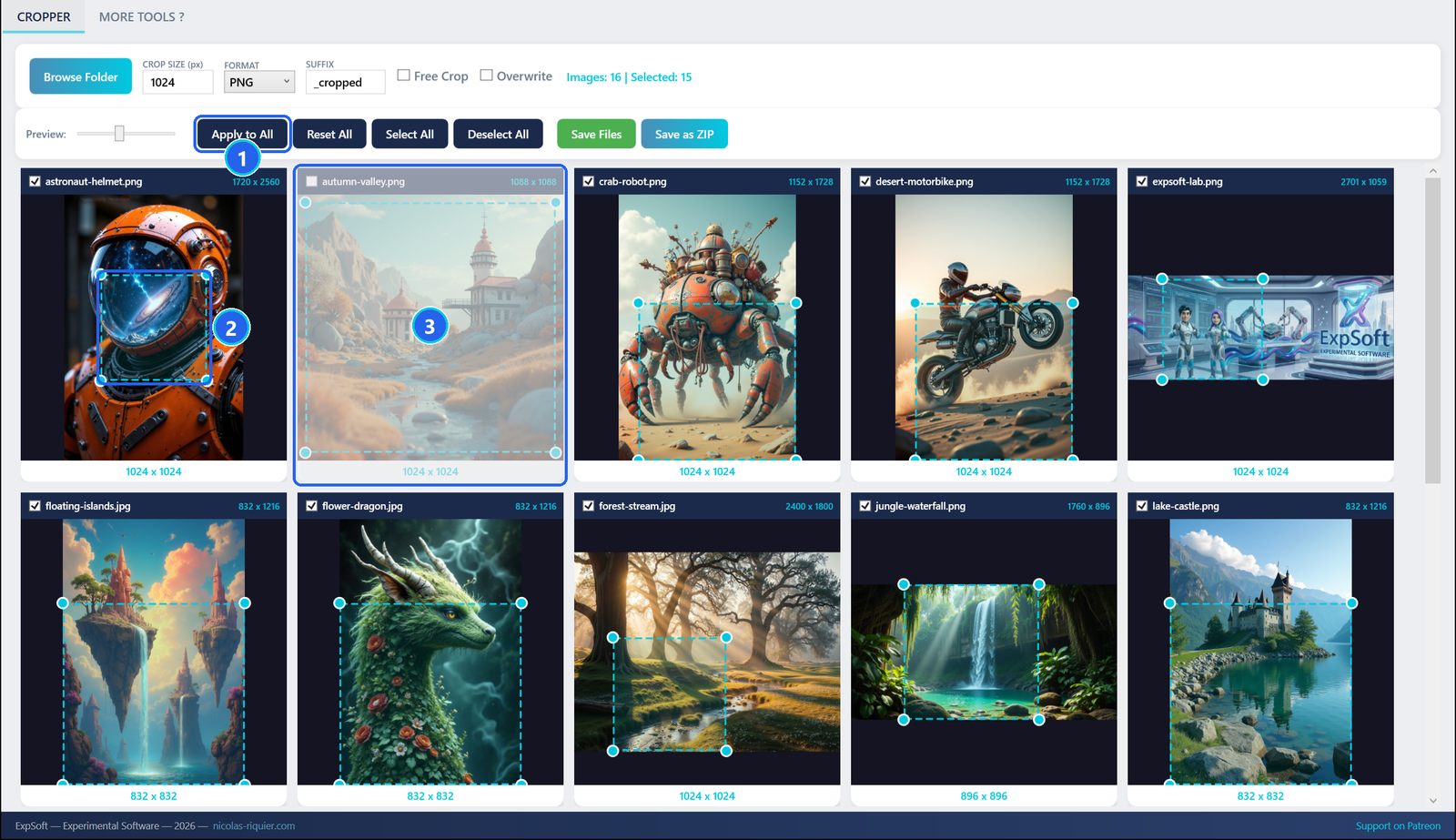
- 1Apply to All — copies the zone of the first ticked image.
- 2The model zone — the zone of the first ticked image, here the astronaut.
- 3Unticked image — left exactly as it was.
On a smaller image, the copied square is made smaller so that it fits, and it stays a square. On images of very different sizes the copied position can fall in odd places: fix those cards by hand, or click Reset All to put every zone back in the centre.
Rectangles: Free Crop
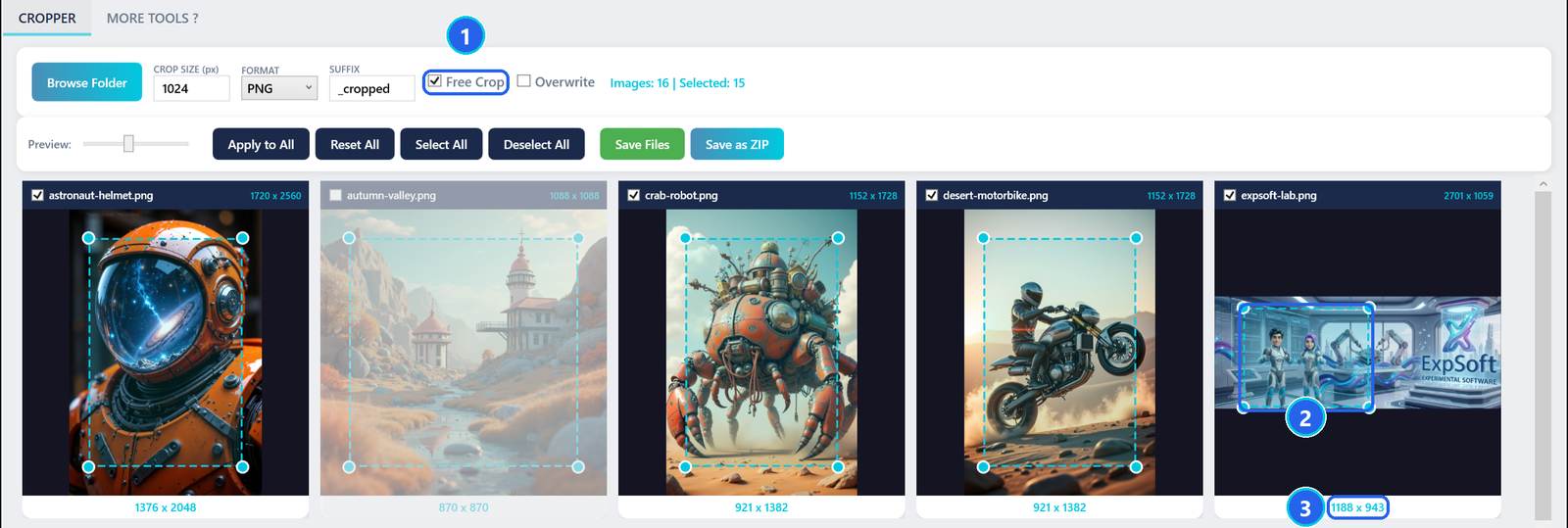
- 1Free Crop — ticked: every zone becomes a centred rectangle covering 80 % of its image.
- 2A rectangle — its corners change the width and the height separately.
- 3Crop size — the size of the rectangle you will get: 1188 × 943.
Save the crops
- Choose the FORMAT: PNG keeps every pixel; JPEG gives smaller files and shows QUALITY %.

- 1FORMAT — PNG or JPEG.
- 2QUALITY % — JPEG quality, from 1 to 100. 92 by default.
- Click Save Files to write each crop next to its original (
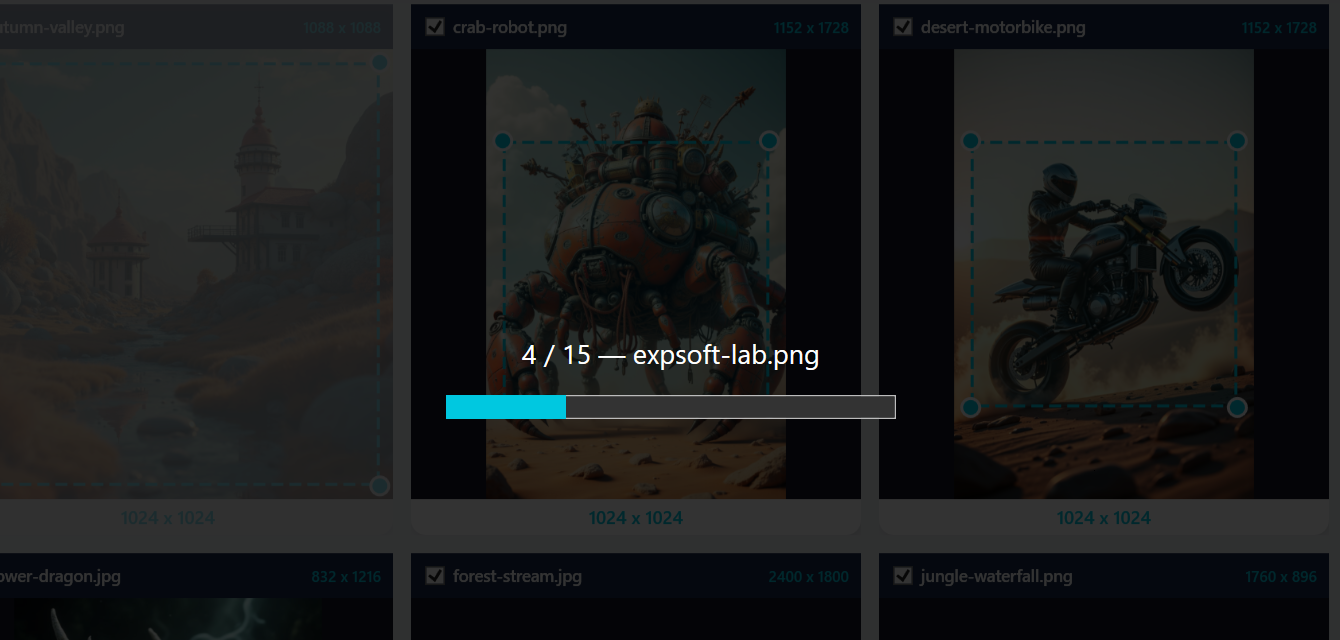
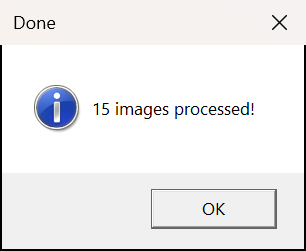
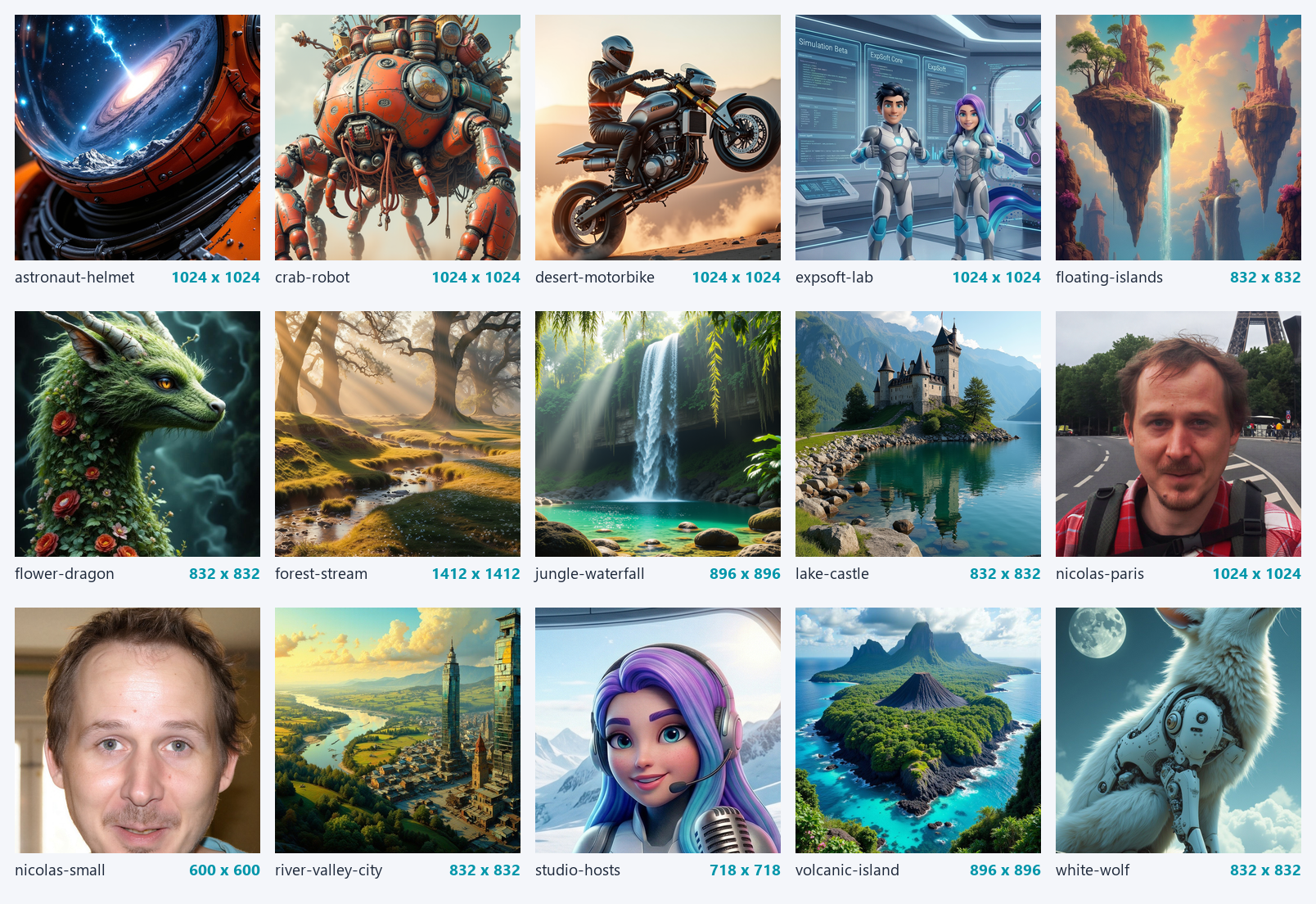
forest-stream.jpgbecomesforest-stream_cropped.png), or Save as ZIP to put them all in one archive named after the folder —Training-Set_cropped.zip— inside that folder. - A progress bar shows each file, then a message tells you how many images were processed.
Operations
| To… | Do this |
|---|---|
| Load a folder | Browse Folder, or drop the folder on the window |
| Load a few images only | select them in Windows Explorer and drop them on the window |
| Move a zone | drag inside it |
| Resize a zone | drag one of its corners (a square stays a square) |
| Skip an image | untick its box |
| Keep only a few images | Deselect All, then tick the ones you want |
| Copy one zone to a series | place the zone of the first ticked image, then Apply to All |
| Start the placement over | Reset All |
| Change the size of every square | type a new CROP SIZE and leave the box |
| See more cards at once | move the Preview slider to the left |
SmartCropper is driven with the mouse: this version has no keyboard shortcuts.
The MORE TOOLS ? tab shows the other ExpSoft tools. When a newer version is available, the version badge in the header turns orange: click it to open that tab.
Files the app writes
The crops, and the ZIP, go into the folder of your images. Your originals are never changed. With
Overwrite off, a name that already exists is kept and the new file is numbered:
name(1).png, name(2).png…
SmartCropper saves no settings: each start begins with the defaults. The MORE TOOLS ? tab keeps its
browser data in a ExpSoft_SmartCropper.exe.WebView2 folder next to the app.
Troubleshooting
The app does not start.
Install the free .NET 8 Desktop Runtime from Microsoft — Windows offers the download link the first time — then start the app again.
An image is missing from the gallery.
Sub-folders are not scanned, and only JPG, PNG, BMP, GIF, TIFF and WEBP files are read. Move the image into the folder, or convert it to one of these formats.
My crops are not all 1024 × 1024.
A zone never goes past the edges of its image: a smaller image gets the largest square that fits, and a zone you enlarged gives a bigger file. The size under each card is the size you will get.
Apply to All put some zones in odd places.
It copies the position in pixels of the first ticked image, which suits images of the same size. Fix the odd cards by hand, untick the images that should not follow before clicking, or click Reset All to start over.
I switched Free Crop and my zones are gone.
Switching Free Crop resets every zone, and there is no undo. Choose the mode first, then place the zones.
Where are my files?
In the folder of your images: one _cropped file per image with Save Files,
or one <folder>_cropped.zip with Save as ZIP.