Before you start
A demo, a jingle or a backing track made by hand means writing, recording, arranging and mixing — days of work for one minute of music, and the same again for every variation you want to hear. ACE-Step 1.5 turns a line of text and your lyrics into a finished 60-second track in well under a minute on a recent NVIDIA card, so you can hear ten versions of an idea in the time one used to take. Everything runs on your own PC.
- ACE-Step 1.5 comes with the ExpSoft subscription on Patreon, from The Power User tier (Tier 2) and above.
- Windows 10 or 11, 64-bit, and the free .NET 8 Desktop Runtime. If it is missing, Windows offers to download it the first time you start the app.
- An NVIDIA card. 12 GB of video memory or more is recommended for the XL models; with 8 GB, use the smaller models (Step 2).
- 16 GB of system memory at least. The largest lyrics model needs about 9 GB of it.
- Disk space: about 27 GB after the setup, about 55 GB with one XL model, about 95 GB with all of them — plus 2 to 9 GB for the lyrics model you choose.
- A Hugging Face token is optional. The models download without one; add yours in SETTINGS only if a download asks for it.
The window at a glance
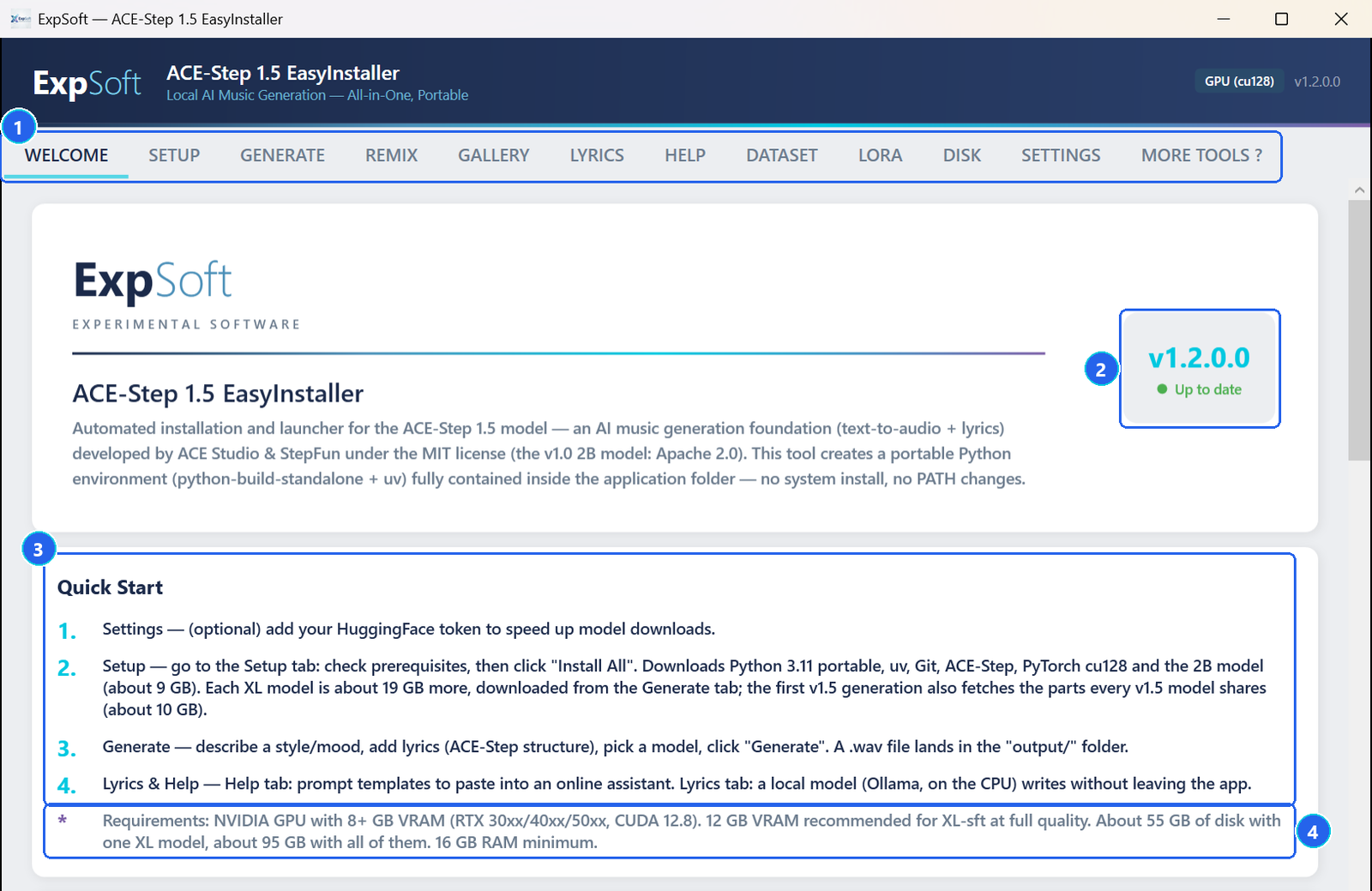
- 1The tabs — Setup installs everything, Generate makes songs, Remix re-imagines a track, Gallery keeps your songs, LoRAs, datasets and lyrics, Lyrics writes lyrics with a local model, Help holds lyric templates, Dataset and LoRA are for experimenters (see below), Disk shows what takes space, Settings holds your keys, More Tools ? shows the other ExpSoft tools.
- 2Version badge — says whether a newer version is available.
- 3Quick Start — this guide in four lines.
- 4Requirements — the card, the memory and the disk space the app needs.
Every button has a tooltip: hover it to read exactly what it does. The bar at the bottom shows the system and video memory in use.
Install
Open the SETUP tab and click Install All. It happens once.
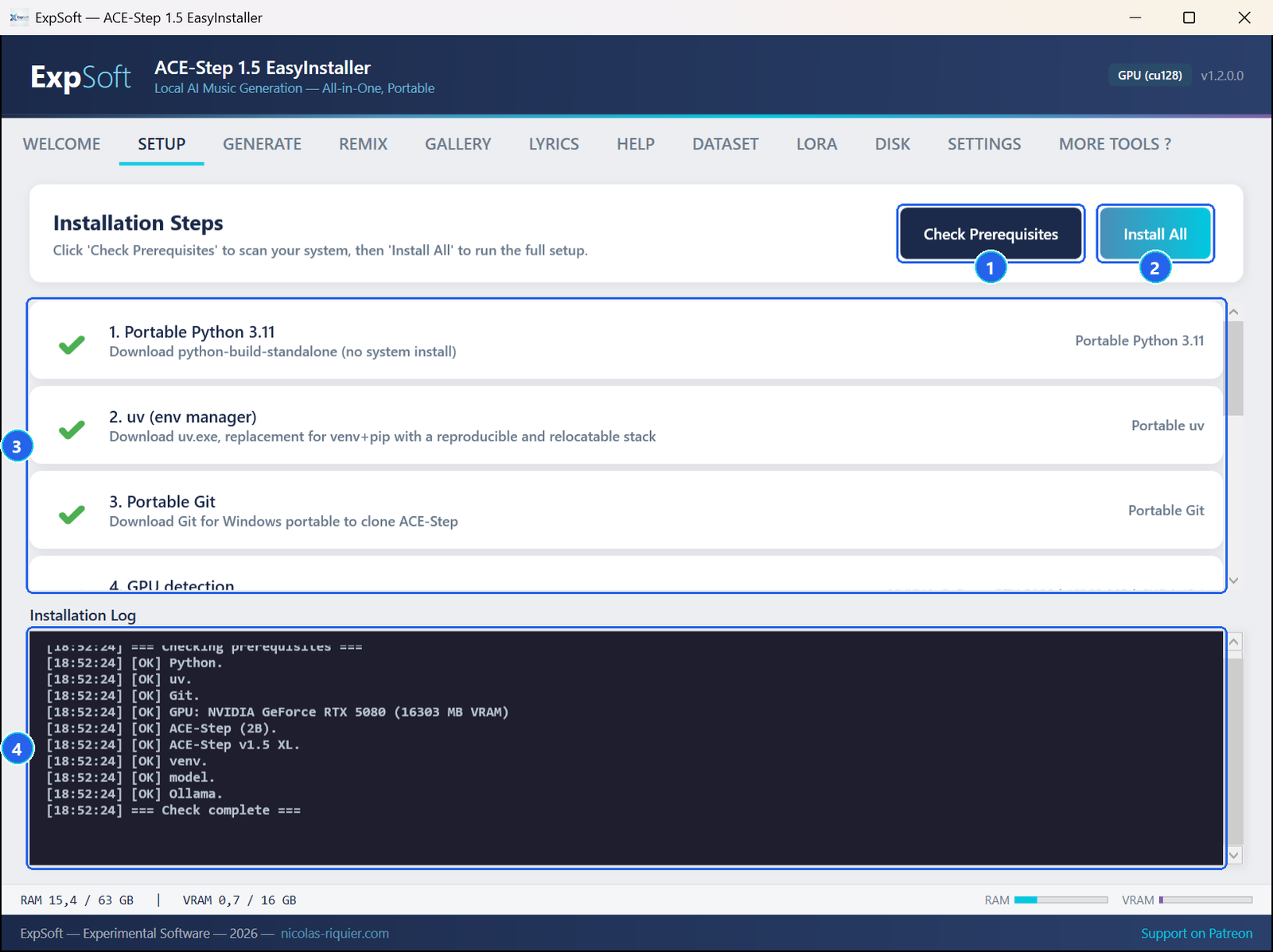
- 1Check Prerequisites — looks at what is already installed and at your card, and ticks what is there. It installs nothing.
- 2Install All — nine steps in order: a portable Python, its package manager, a portable Git, the card check, the two code bases, the Python libraries, the 2B model (about 9 GB) and the local lyrics engine. A step already done is skipped.
- 3The steps — a green tick means done; scroll the list to see all nine.
- 4The log — every command and its result, also saved in
logs\.
The setup downloads about 20 GB. On our test PC, with a fast connection and the 2B model already in place, the whole setup took under 3 minutes.
Your first song
Open the GENERATE tab, describe the style, paste your lyrics, click GENERATE.

- 1Quick examples — ten ready-made styles. One click fills the style, the lyrics and the length; steps and guidance follow the model you picked.
- 2Description / Style — genre, instruments, voice, mood, tempo, key: upbeat synth-pop, bright analog synths, female lead vocal, catchy chorus, 118 bpm.
- 3Random from gallery — for a batch, takes a different lyric from your gallery for every track.
- 4Lyrics — sections in brackets:
[verse],[chorus],[bridge]. Leave[instrumental]for a track without singing. - 5Last generated file — where the song was saved.
- 6The log — the progress of the run.
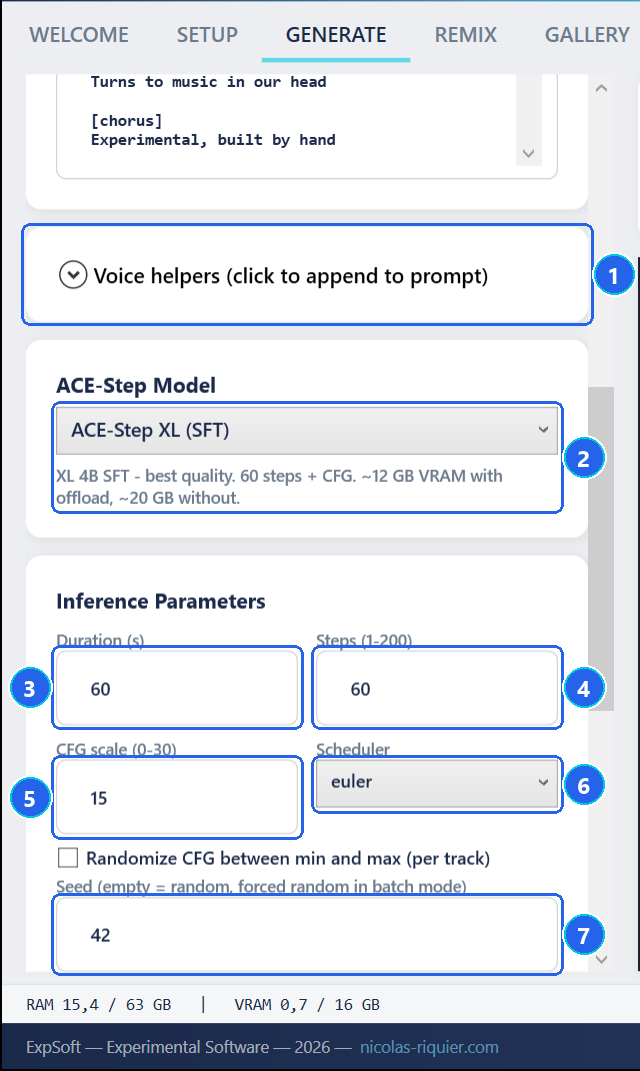
- 1Voice helpers — buttons that add voice tags to the style: gender, timbre, age and style, accent or language.
- 2Model — see the table below. Steps and guidance are set for you when you switch.
- 3Duration — in seconds; 30 to 120 is the sweet spot.
- 4Steps — more is slower and slightly cleaner. 60 for XL (SFT), 50 for XL (Base), 8 for the turbo models.
- 5CFG scale — how closely the song follows your text: 15 is the balanced default, lower is looser. Turbo models do not use it.
- 6Scheduler — euler is fast; heun is about twice as slow and slightly smoother on held notes.
- 7Seed — keep the same seed and settings to get the same song again; leave it empty for a new one each time.
Further down: Use LoRA (for experimenters), the two memory options, the Title of the file and the Count — more than 1 makes a batch, each track with a new seed, for an overnight run. Every song lands in output\ with a .json file that keeps its settings.
| Model | What it is for | Settings |
|---|---|---|
| XL (SFT) — default | The best quality | 60 steps, guidance 15 |
| XL (Base) | More variety, less polished | 50 steps, guidance 15 |
| XL (Turbo) | Quick drafts: 8 steps instead of 60 | 8 steps, no guidance; no Extend |
| 2B (Turbo) | Cards with 6 to 8 GB of video memory | 8 steps, no guidance; no Extend |
| 2B (v1.0 legacy) | The older generation; takes LoRAs trained on the 2B stack | 60 steps, guidance 15; not in Remix |
Remix a track
Open the REMIX tab, pick a song, choose what to do with it, click REMIX.

- 1Input audio — drop or pick a WAV, MP3 or FLAC file; lossless is better.
- 2Mode — Cover, Inspire or Extend (table below).
- 3Strength — how close to the source: 0.8 to 1.0 for a cover, 0.2 to 0.5 for inspiration. Not used by Extend.
- 4Prompt — the new style: acoustic unplugged version, fingerpicked acoustic guitar, soft piano. Lyrics are optional: a cover keeps the original ones.
- 5Last remixed file — where the result was saved.
- 6The log — the progress of the run.
| Mode | What you get |
|---|---|
| Cover | The same song — melody and words — performed in the style you describe. |
| Inspire | A new song that borrows the groove and energy of the source. |
| Extend | The source kept as it is, followed by the number of seconds you set in Duration. XL (SFT) and XL (Base) only. |
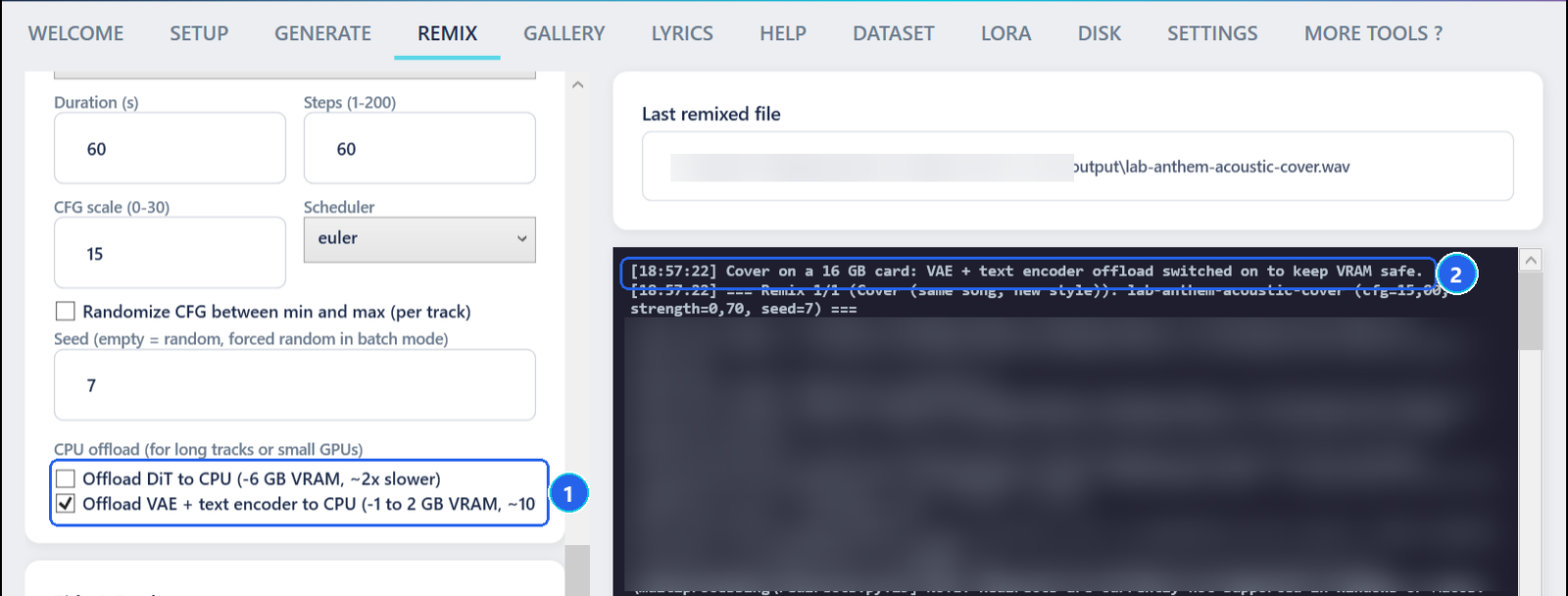
- 1Memory options — a remix first reads your whole song, which takes extra video memory. On cards with 16 GB or less, Cover and Inspire switch on the text-encoder option, and Extend switches on both.
- 2The log says so — the first line tells you which option was switched on.
The gallery
Every song you make is listed in GALLERY › Musics, with its settings. Nothing is deleted automatically.

- 1Sub-tabs — Musics, LoRAs, Browse Datasets, Lyrics.
- 2Refresh / Folder — reload the list, or open
output\. - 3Your tracks — newest first. Right-click a track to rename it, copy or cut it (paste it in Windows Explorer), show it or delete it.
- 4→ MP3 — saves an MP3 next to the WAV; the WAV is kept.
- 5Reveal / Delete — for the selected track.
- 6Waveform — click to jump, drag to select a region.
- 7Player — Play, Pause, Stop; Loop region repeats the part you selected.
- 8Prompt and lyrics — exactly what made this track.
Lyrics
Staring at an empty page is the slow part of a song. The LYRICS tab writes a first draft in the right format from a one-line brief, with a model that runs on your processor — the graphics card stays free for the music.

- 1Engine status — grey until your first generation starts it, green when ready. Orange means it is stuck: click Restart Ollama next to it.
- 2Model — three sizes (about 2, 5 and 9 GB of system memory), picked from your memory and remembered. Downloaded tells you it is already on disk.
- 3Download / Unload — download the model once, or free its memory when you are done.
- 4Brief — theme, style, mood.
- 5Prompt mode — Minimal for the small model, Detailed (more section tags and an example) for the larger ones.
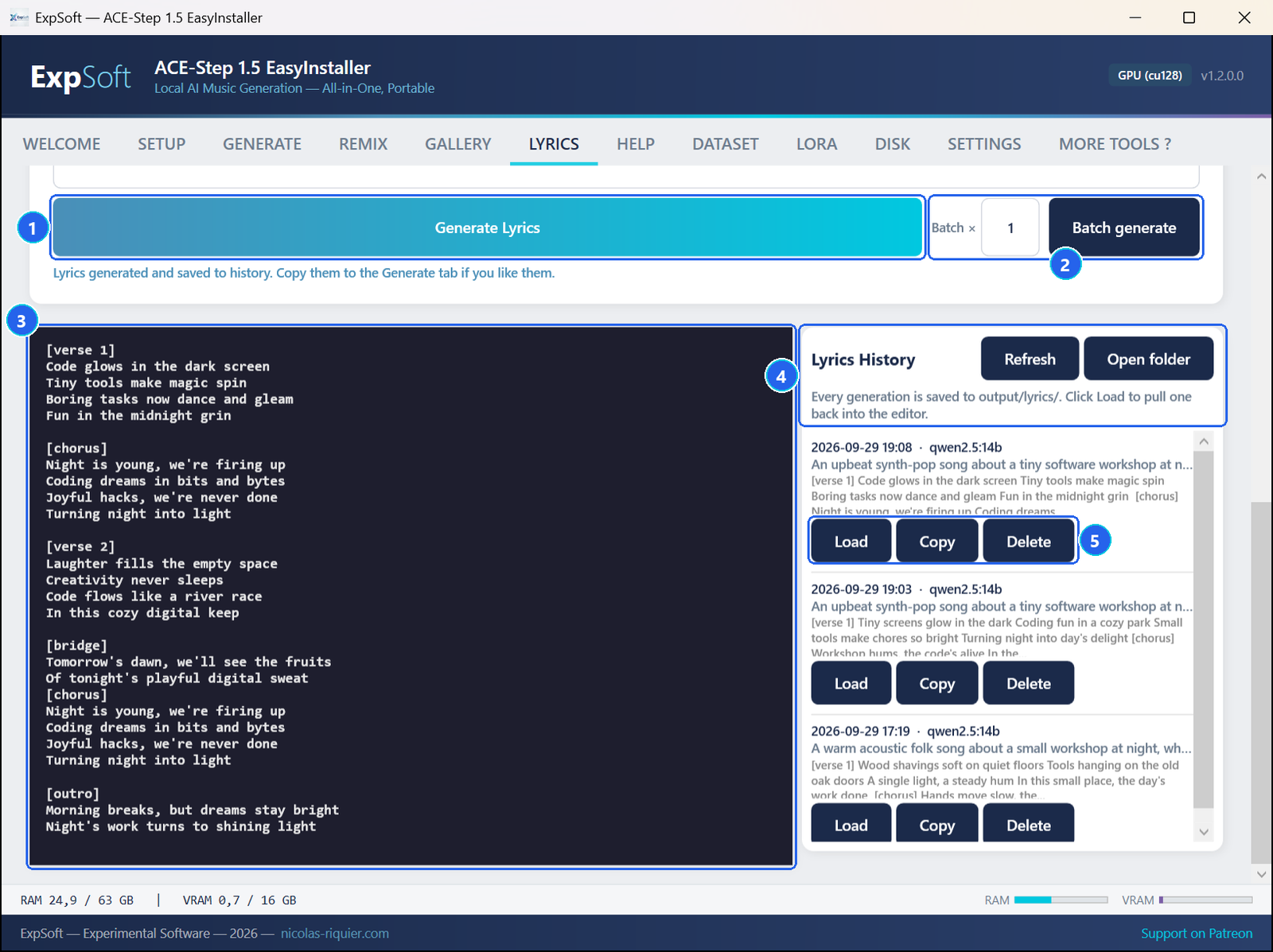
- 1Generate Lyrics — writes one draft and saves it to the history.
- 2Batch — several drafts in a row; the model stays loaded between them.
- 3The lyrics — edit them here, then copy them into GENERATE.
- 4History — every draft is kept in
output\lyrics\, and in GALLERY › Lyrics where you can tag and filter them. - 5Load / Copy / Delete — bring a draft back into the editor, copy it, or remove it.
Prefer an online assistant? The HELP tab has five ready-to-paste templates (pop-rock, rap, ballad…) that ask for lyrics in the same format.
For experimenters: LoRA
The DATASET and LORA tabs can build a training set from your own tracks and train a LoRA. This part is not supported: in our tests, LoRA training does not give usable results yet. The tabs stay in the app for those who want to experiment, with their own guide: Dataset & LoRA. Every song, remix and example of this guide and of the product page was made without a LoRA.
Memory settings
The defaults are set for a card with 16 GB of video memory. With less, or for long songs:
- Offload VAE + text encoder to CPU — the lighter option. On our 16 GB card it took a 60-second Cover from the full 16 GB down to 13.3 GB, and the Cover was even a little faster, because nothing had to spill over into system memory.
- Offload DiT to CPU — the big saving, for songs longer than 2 minutes on 12 to 16 GB cards; generation becomes much slower.
- A lighter model — XL (Turbo), or 2B (Turbo) for 6 to 8 GB cards.
- A shorter duration — memory grows with the length of the song.
Remix switches the options on by itself on cards with 16 GB or less (Step 3). The lyrics model runs on the processor and uses system memory only.
How fast is it?
Measured on our test PC (RTX 5080, 16 GB of video memory, 64 GB of system memory). Your card will give other numbers.
| Task | Time |
|---|---|
| A 60-second song with lyrics, XL (SFT), 60 steps | 28 to 41 seconds, model loading included (13.6 GB of video memory at the peak) |
| A 60-second Cover, XL (SFT) | 31 seconds (13.3 GB at the peak, text-encoder option on) |
| Extend a 60-second song by 15 seconds, XL (SFT), both options on | Done in one run (11.7 GB at the peak) |
| Lyrics with the largest model, on the processor | 48 to 56 seconds, engine start included |
Files the app writes
Everything the app installs and writes stays in its folder.
output\— your songs and remixes, each with a.jsonof its settings;output\lyrics\— your lyrics.models\— the music models;runtime\— the portable Python, Git and the lyrics engine with its models;venv\— the Python libraries;cache\— the download cache.datasets\,loras\,training_profiles\— your datasets, LoRAs and training recipes.logs\— one log per run;config.json— your settings and keys.
The DISK tab shows what each folder takes, with a Delete button on the ones that are safe to clear.
Troubleshooting
Windows asks me to install .NET when I start the app
The app needs the free .NET 8 Desktop Runtime. Accept the download Windows offers, install it, then start the app again.
"This model is not downloaded yet"
Click Download this model under the model choice. The first song with a v1.5 model also downloads the shared parts once (about 10 GB): that first run takes longer.
Out of memory, or the screen flickers and the driver restarts
The card ran out of video memory. Tick Offload VAE + text encoder, then Offload DiT if needed, shorten the song, or pick a turbo model. Close other programs that use the graphics card.
Extend is refused
The turbo models cannot extend a song. Pick XL (SFT) or XL (Base).
The lyrics engine is grey, or seems stuck
Grey is normal: the engine starts with your first Generate Lyrics. If the status turns orange or a generation never ends, click Restart Ollama. Closing the app stops the engine and frees its memory.
"Smart App Control blocked a Python extension"
A Windows policy of your PC, not a broken install: run the same step once more.
The More Tools tab is blank
It needs the WebView2 runtime and an internet connection.
Something went wrong. What should I send?
The logs\ folder has one file per run (setup, generation, remix, lyrics, training). Send the one of the run that failed to ExpSoft, with a word on what you clicked.