Why links matter
AI tools share big folders through junctions and symbolic links: a Python environment, a model store used by several apps. A plain copy follows those links and copies what is behind them — the copy grows, and the links are gone. The Files Manager re-creates each link at the destination instead.
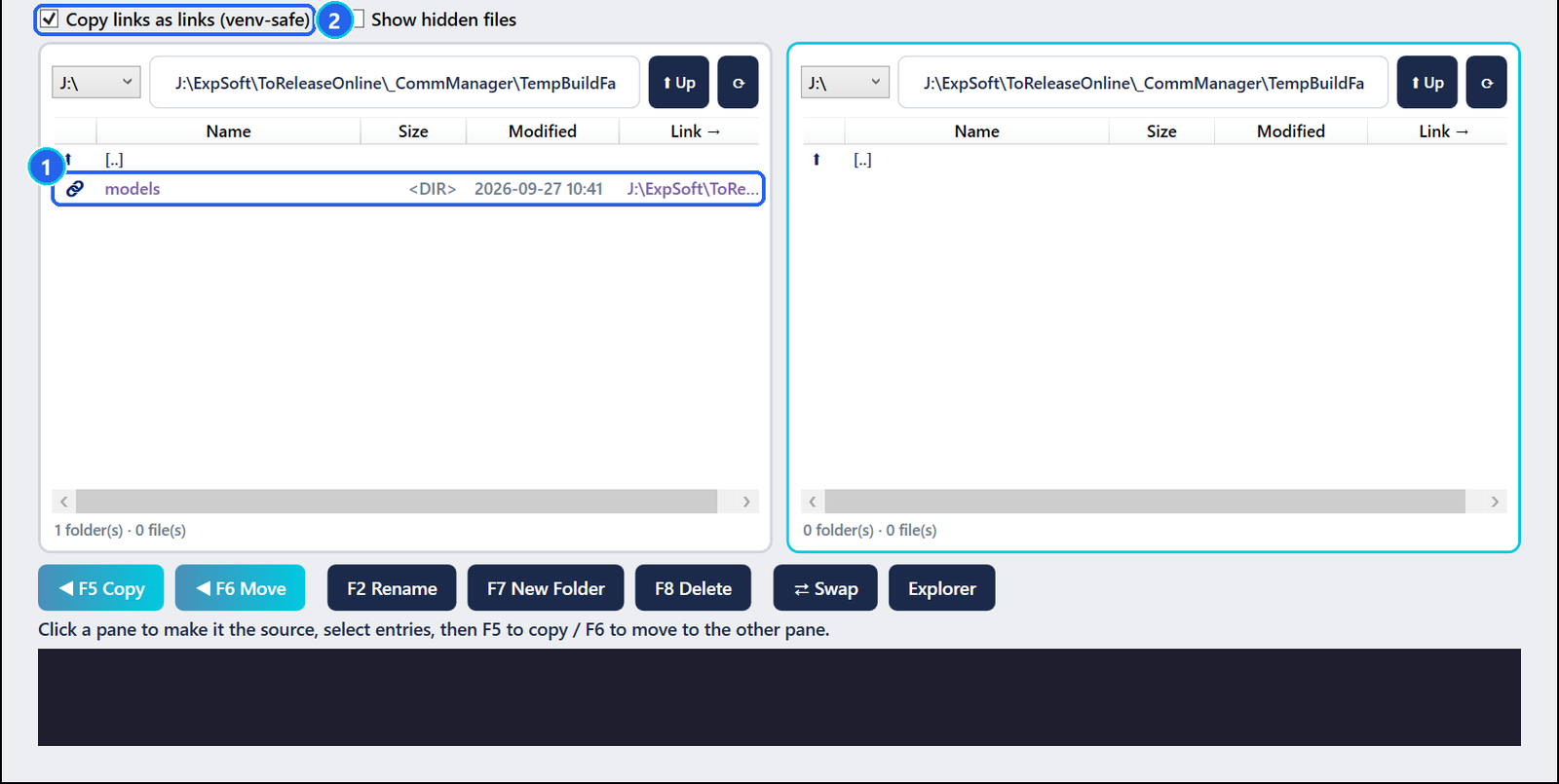
- 1A link — shown with a link icon; the Link → column gives its target.
- 2Copy links as links — on by default. Untick it only if you really want the content behind the links.
Open the two folders
Each pane has a drive list, a path bar (type a path and press Enter), Up and a refresh button. Double-click a folder to open it. The pane you click becomes the source; the other one is the destination.
Select what to copy
Click an entry in the source pane (Ctrl or Shift for several). The status line under the pane counts the selection.
Copy with F5
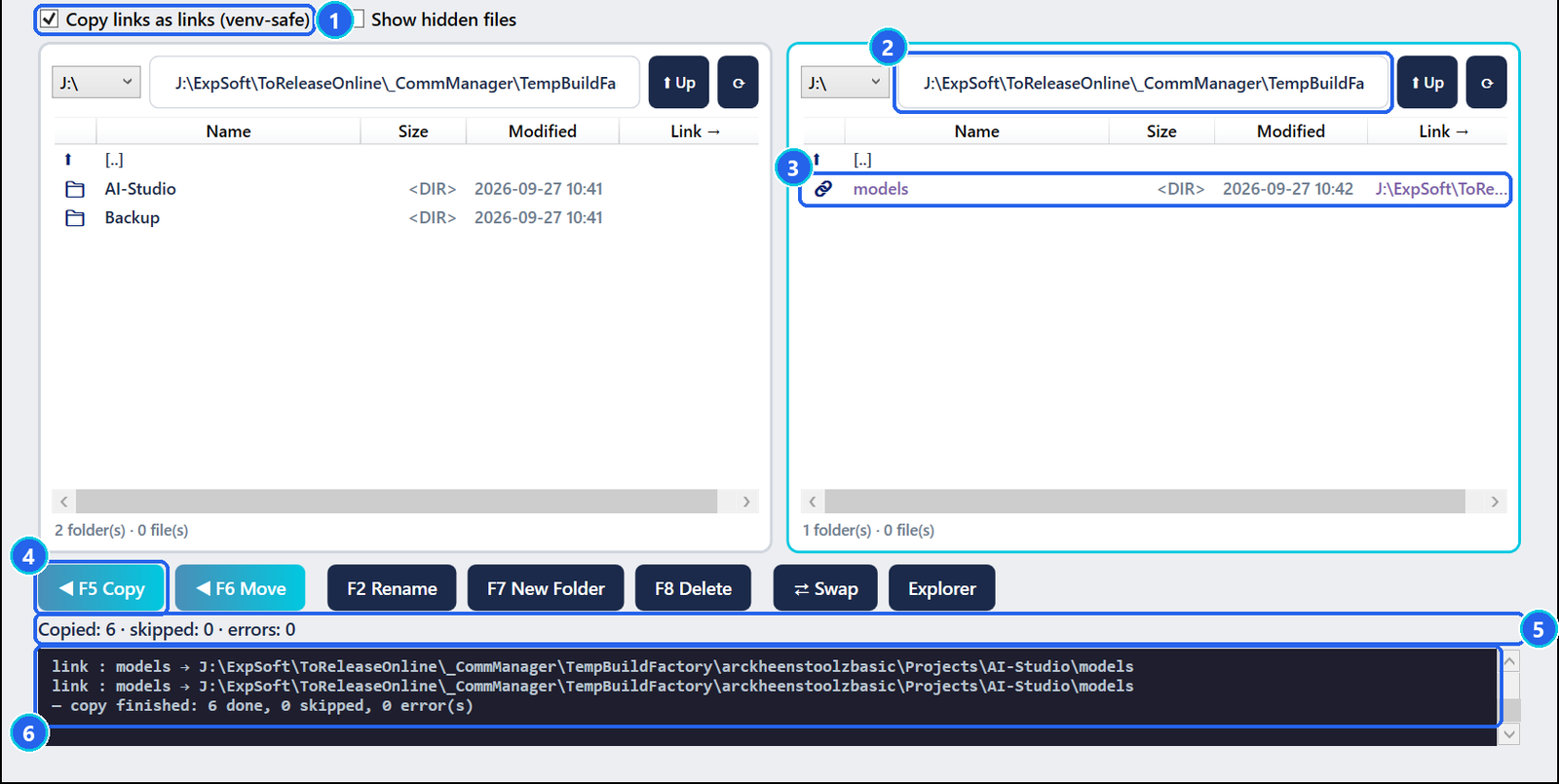
- 1Copy links as links — the option that keeps links as links.
- 2Destination — the folder that receives the copy.
- 3The result — the link exists again in the copy, pointing to the same target.
- 4F5 Copy — copies the selection to the other pane. F6 Move moves it.
- 5Status — copied, skipped and errors.
- 6Log — every link re-created, then the summary.
Keys and buttons
| Key | Action |
|---|---|
| F5 | Copy the selection to the other pane — links stay links |
| F6 | Move the selection — on the same drive an instant rename; across drives the source is deleted only if the copy had no error |
| F2 | Rename |
| F7 | New folder |
| F8 / Del | Delete — permanent; a link is removed without touching its target |
| Backspace | Parent folder |
| Swap | Exchange the two panes |
| Explorer | Open the active folder in Windows Explorer |
Troubleshooting
Does Delete use the Recycle Bin?
No, it is permanent. A link is removed as a link: the folder it points to is never touched.
The log stays quiet during a long copy.
Ordinary files are not listed one by one, to keep the log readable. It shows the start, the scan, each top-level item, every link, the errors and the final summary.
Creating a symbolic link failed.
Windows only lets a normal account create symbolic links when Developer Mode is on (Settings › System › For developers). Folder links are then re-created as junctions, which need no rights.